Your firm may need to close a case at any time, for any number of reasons, and it’s easy to do in SimplyConvert. The program treats the closing of a case as just another acquisition status, so you can close a case regardless of its current status. Here’s what to do:
- Open the Cases page.
- Filter the client list as needed, as described in Using Filters to View Your Cases.
- Find the case you’re looking for and click its row in the case list. The case opens and the case information tabs appear on the left.
- Click the Case Details tab (Figure 1).
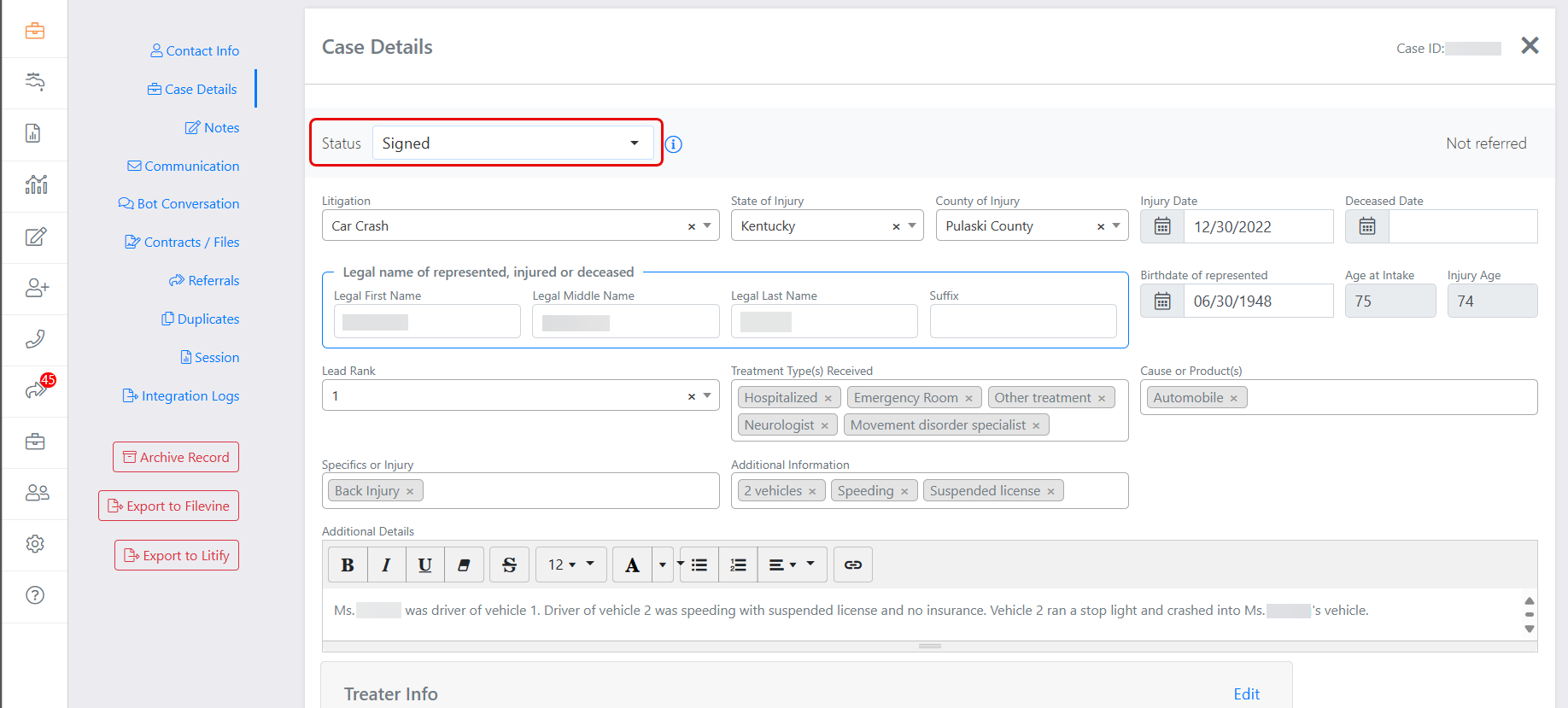
Figure 1. You can use the Status field to close a case on the Case Details tab.
- Click the Status drop-down arrow and select Closed (Figure 2).
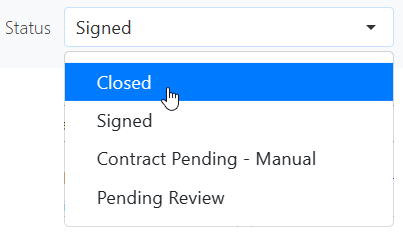
Figure 2. Options for specifying a case’s acquisition status.
- Scroll to the bottom of the Case Details tab and click Save Changes. The Closing Actions dialog box opens (Figure 3). This dialog box lets you draft a notification message for the client, alerting them to the closure and providing an explanation for it.
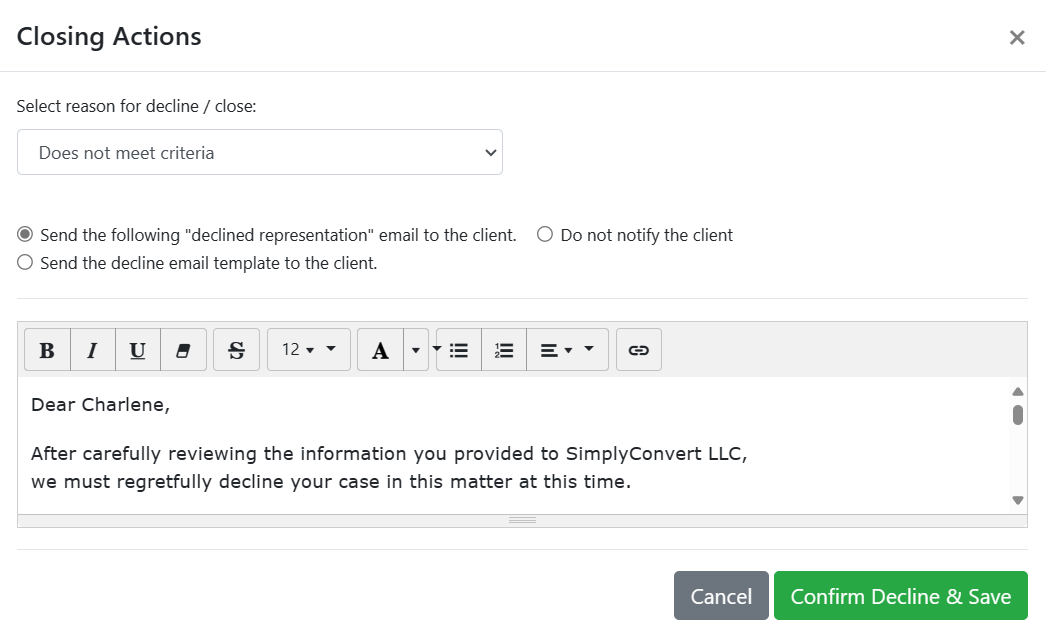
Figure 3. Creating a notification message for the client.
- Click the Select reason for decline/close drop-down arrow (Figure 4) and select one of the following reasons for closing the case:
- Does not meet criteria. The information provided to the firm does not meet the criteria required for pursuing a case.
- Does not wish to pursue. The client has notified your firm that they do not want to continue with the case.
- Unable to reach. The firm has not been able to contact the client and thus is declining the case.
- Lost to competitor. The client has decided to work with a different law firm.
- Duplicate. There is an identical case (same client, litigation, etc.) logged in SimplyConvert. For more information, see Managing Duplicate and Dual Representation Cases.
- Other. The firm has another reason for closing the case.
Each reason in the list tells SimplyConvert to use a different message in the message composition box. You can click each reason and read its template.
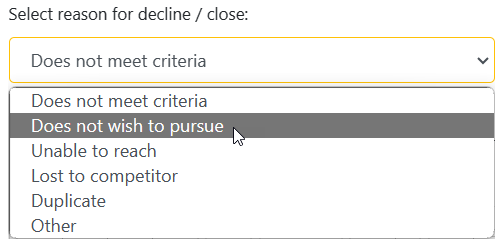
Figure 4. Selecting a reason for closing a case.
- Select one of the options for drafting and sending the message to the client:
- Send the following “declined representation” email to the client. This option allows you to edit and format the contents of the message before sending it to the client.
- Send the decline email template to the client. This option sends a custom template your firm has provided to SimplyConvert (if applicable) or the default decline email template if no special template is set.
- Do not notify the client. This option lets you close the case without sending a message to the client. This option is selected by default if you are closing the case because a duplicate exists in the system.
- Click Confirm Decline & Save. Whether or not a message goes out to the client, SimplyConvert closes the case.
The case’s status is now “Closed,” and SimplyConvert automatically adds a note about the status change to the Notes tab. This change does not remove the case from the case list; if you filter the list to find the case, it still appears in the search results. To remove a case from the list, you can archive it, as described in Archiving a Case.