Two specific types of cases can be troublesome for a law firm, and should be avoided:
- Duplicate Cases. It doesn’t take long for a practicing attorney to realize that duplicate cases—multiple case records created for the same client and litigation—can create problems for a firm’s operations. Duplicate cases can cause confusion among staff and attorneys as they try to figure out which case is “real,” and which one is “a mistake.” Duplicate cases may include different documents (or, more frustratingly, different versions of the same document) or different information about the client’s injury, losses, conditions, treatments, and more.
- Dual Representation Cases. Even more troublesome for a firm is the existence of dual representation cases, where two firms inadvertently take on the same client, with neither firm aware of the other’s involvement. Both firms can end up filing duplicate claims on the same client’s behalf, while devoting time and resources to building their respective cases.
SimplyConvert spots duplicate and dual representation cases that meet certain criteria, as described later in this article. Such cases are created for a variety of reasons, and almost always by mistake, but it’s always a good idea to look out for them and to have a plan for dealing with them.
Managing Duplicate Cases
SimplyConvert flags cases as duplicates when the following data points are identical in both cases:
- Name of the represented person
- Litigation
- Phone and/or email address
Your firm must own both cases and both must be recorded in SimplyConvert.
Finding Duplicate Cases
Take the following steps to check for duplicate cases in SimplyConvert:
- On the Cases page, click More Filters to expand the filters panel, then select the Show Duplicates checkbox (Figure 1). The Cases page updates to show all the duplicate cases, if any, in the system.
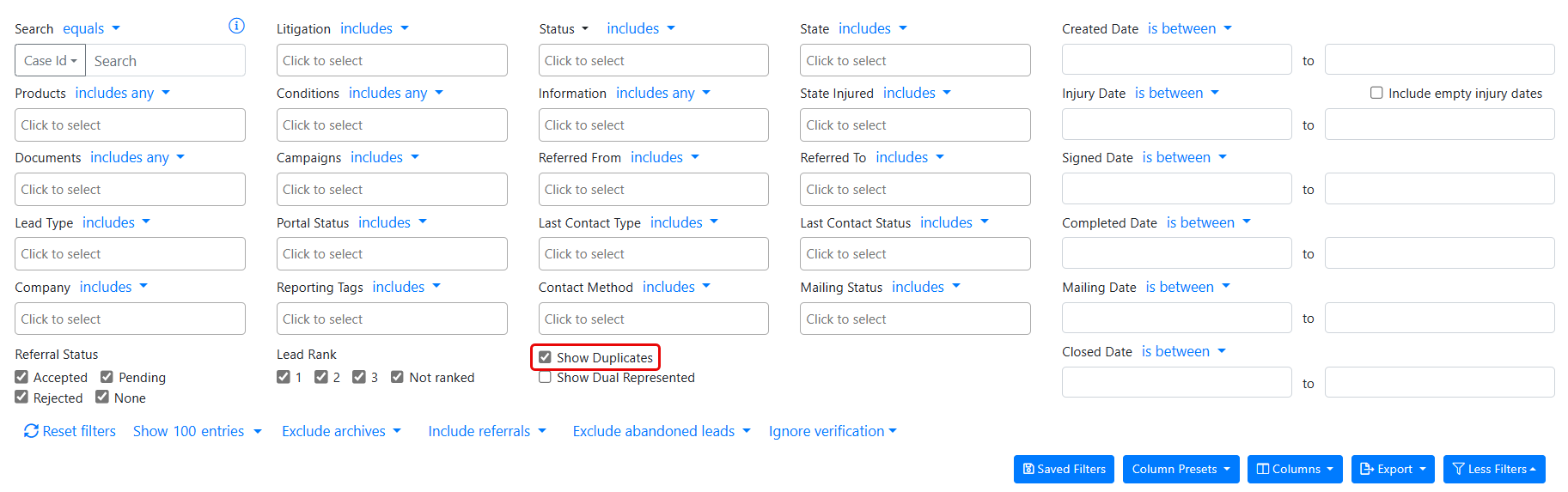
Figure 1. Filtering the Cases page to show duplicate cases.
In this example, SimplyConvert displays all duplicate cases in the system because no other criteria were used in filtering the cases. If you wanted to look for duplicate cases among clients with the same last name or living in the same state, you could use those filters in addition to the Show Duplicates toggle.
Figure 2 shows an example of duplicate cases that show up when the user filters on the last name “Huddleston” and selects the Show Duplicates checkbox. In both cases, the clients have the same first and last name, email address, and litigation type. The phone number is missing from one case, but because they share the same email address, the cases are considered duplicates.
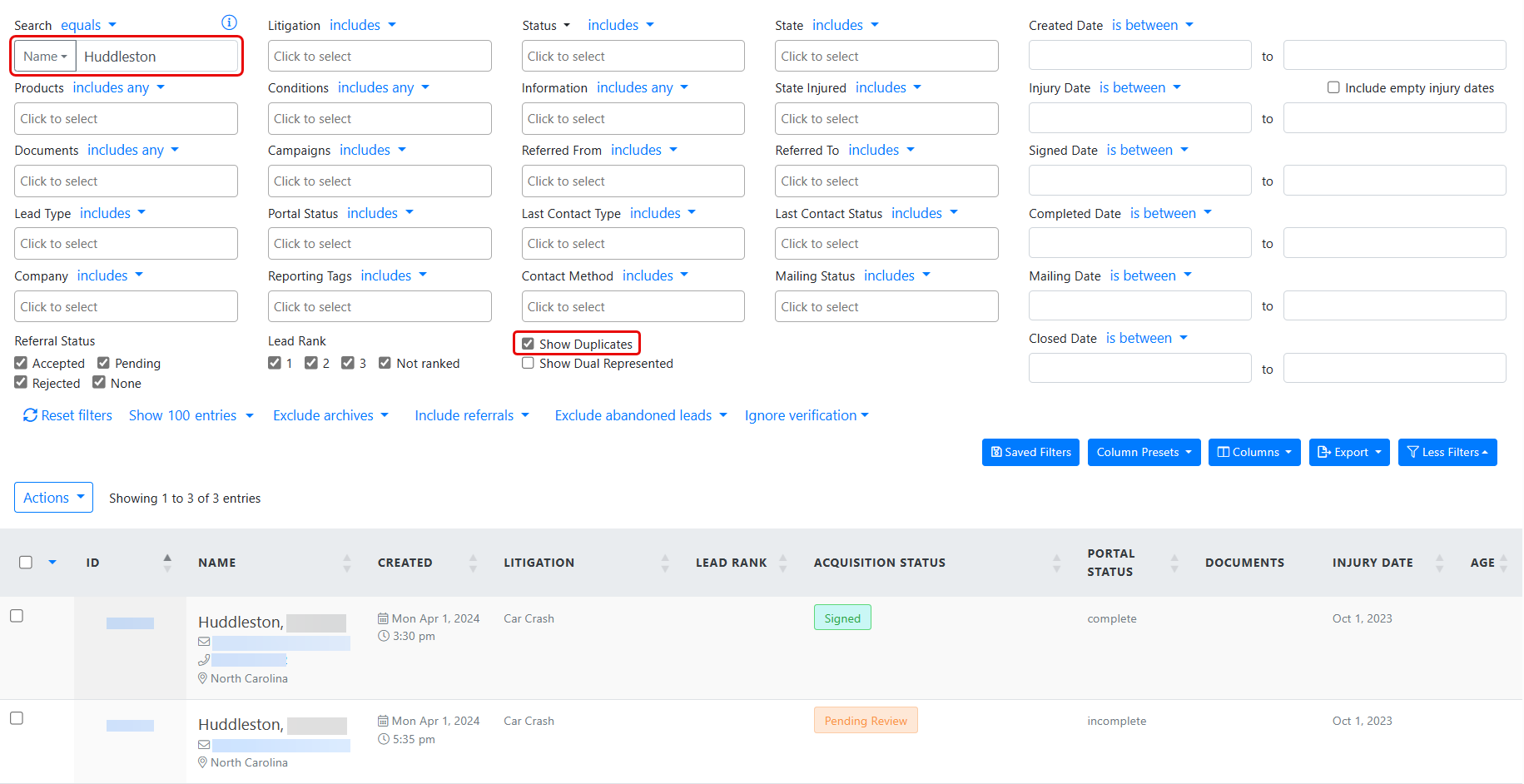
Figure 2. Finding two duplicate cases for a client with the last name “Huddleston.” (Some data is blurred for privacy.)
NOTE: For more information on filtering the Cases page, see Using Filters to View Your Cases.
Verifying That Two Cases Are Duplicates
It’s a good idea to verify that duplicate cases are actually the same case before taking any action on them. Here’s how to do that:
- Open each of the cases in turn, click the Duplicates tab, and look at the Duplicates section for each case (Figure 3).
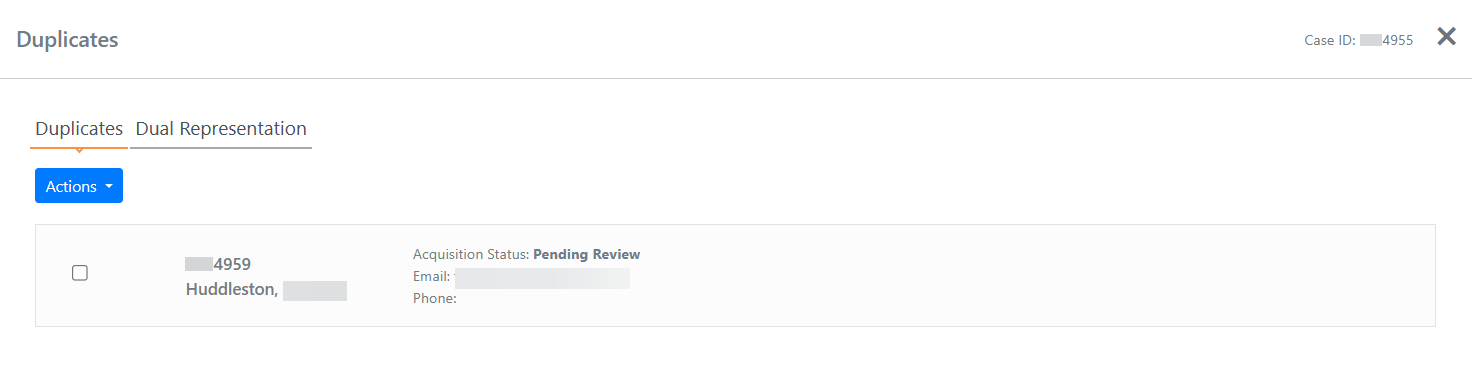
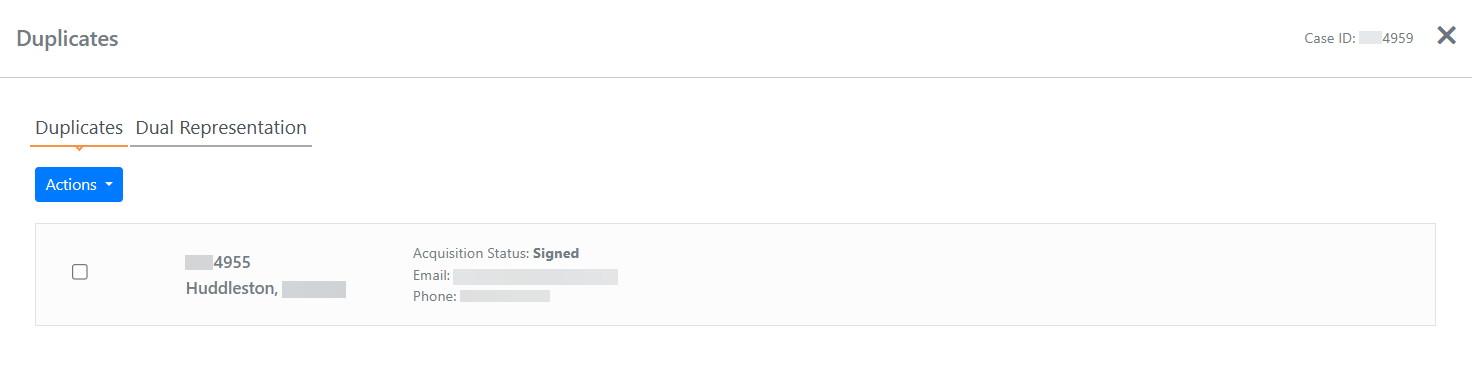
Figure 3. Comparing the Duplicates tab for two duplicate cases.
- Look at the Case ID for each case, in the upper-right corner of the tab. In the Duplicates section of the tab, notice that each case refers to the other’s Case ID as its duplicate.
NOTE: If there are more than two duplicate cases, you can select any of their checkboxes on the tab, click the Actions button, then choose to view any or all of the selected cases. This returns you to the Cases Page where the selected cases will appear, as shown in Figure 2, above.
- Review each case’s Contact Info and Case Details tabs to look for similarities in the information the tabs contain. If the cases share the same client address, date of birth, or injury information, they are most likely duplicates.
- Review the Bot Conversation tabs to see if either case was put into the system as the result of a chatbot interaction. In some instances, a client initiates a chatbot interaction, then either contacts the firm to make a claim or submits a claim form, resulting in a second case being recorded by a member of the firm’s intake team.
In any event, it’s a good idea to contact the client directly to confirm the information you have, settle any factual differences between the two cases, and gather any missing information.
Dealing with Duplicate Cases
When you have verified that two or more cases are duplicates, your firm’s internal process should determine how to handle them. Firms commonly pick the version of the case that contains the most complete and accurate data, add any missing data to it, then close or archive the duplicate case or cases.
Closing a Duplicate Case
Take the following steps to close a duplicate case:
- With the case open, click the Case Details tab.
- Click the Status field’s drop-down arrow and select Closed.
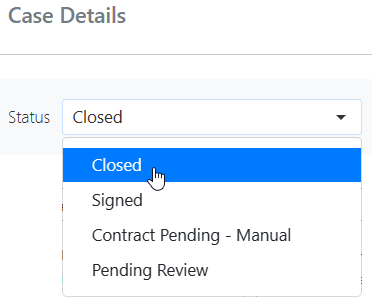
Figure 4. Closing a case.
NOTE: For more information on closing cases, see Closing a Case.
Archiving a Duplicate Case
Take the following steps to archive a duplicate case:
- With the case open, click the Archive Record button. The Archive Actions dialog box opens (Figure 5).
- Click the Save Changes button to archive the case.

Figure 5. Archiving a case.
NOTE: For more information on archiving cases, see Archiving a Case.
Managing Dual Representation Cases
SimplyConvert flags cases as dual representation when they share the following data points:
- Name of the represented person
- Phone and/or email address
- A “Signed” acquisition status
One signed case must be owned by your firm, and the other signed case must be owned by another firm. To be considered dual representation, they must also have the same email, phone, and injured names. In order to view both cases, your firm and the other firm must have opted into the dual representation feature in SimplyConvert. Otherwise, neither firm will be able to view dual representation cases.
Finding Dual Representation Cases
Take the following steps to check for dual representation cases in SimplyConvert:
- On the Cases Page, click More Filters to expand the filters panel, then select the Show Dual Represented checkbox (Figure 6). The Cases Page updates to show all the dual representation cases, if any, in the system.
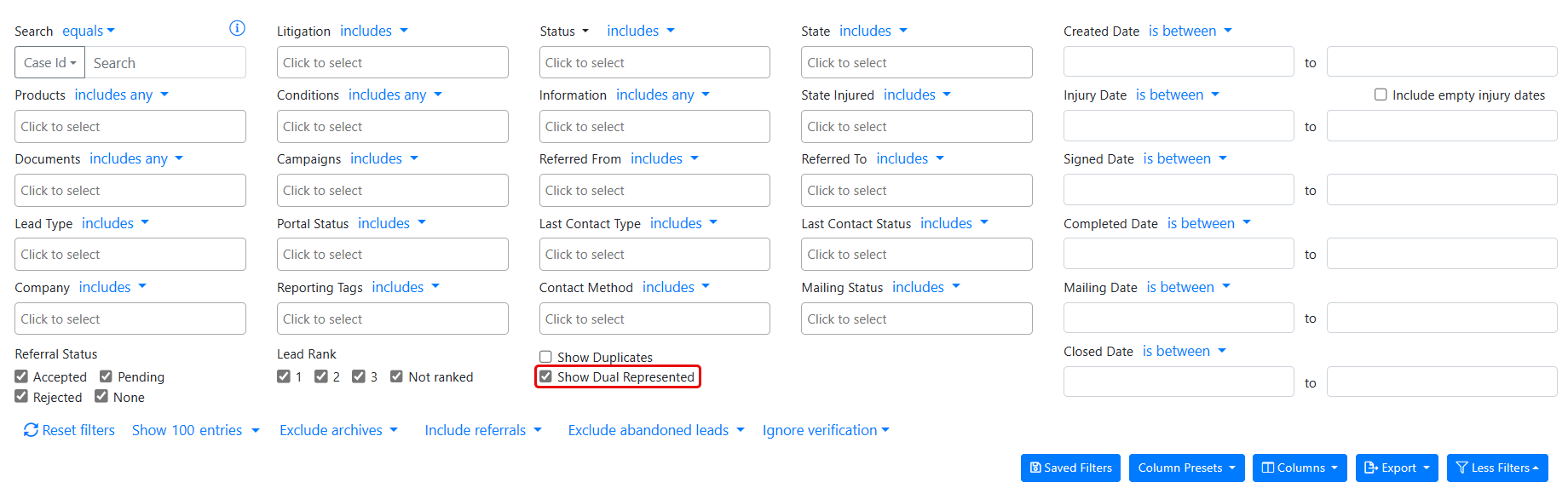
Figure 6. Filtering the Cases page to show dual representation cases.
In this example, SimplyConvert displays all dual representation cases in the system because no other criteria were used in filtering the cases. If you wanted to look for dual representation cases among clients with the same last name or living in the same state, you could use those filters in addition to the Show Dual Represented toggle.
Figure 7 shows an example of dual representation cases that show up when the user filters on the last name “Darling” and selects the Show Dual Represented checkbox. In both cases, the clients have the same first and last name, email address, phone number, and litigation type. Both cases also have the “Signed” acquisition status.
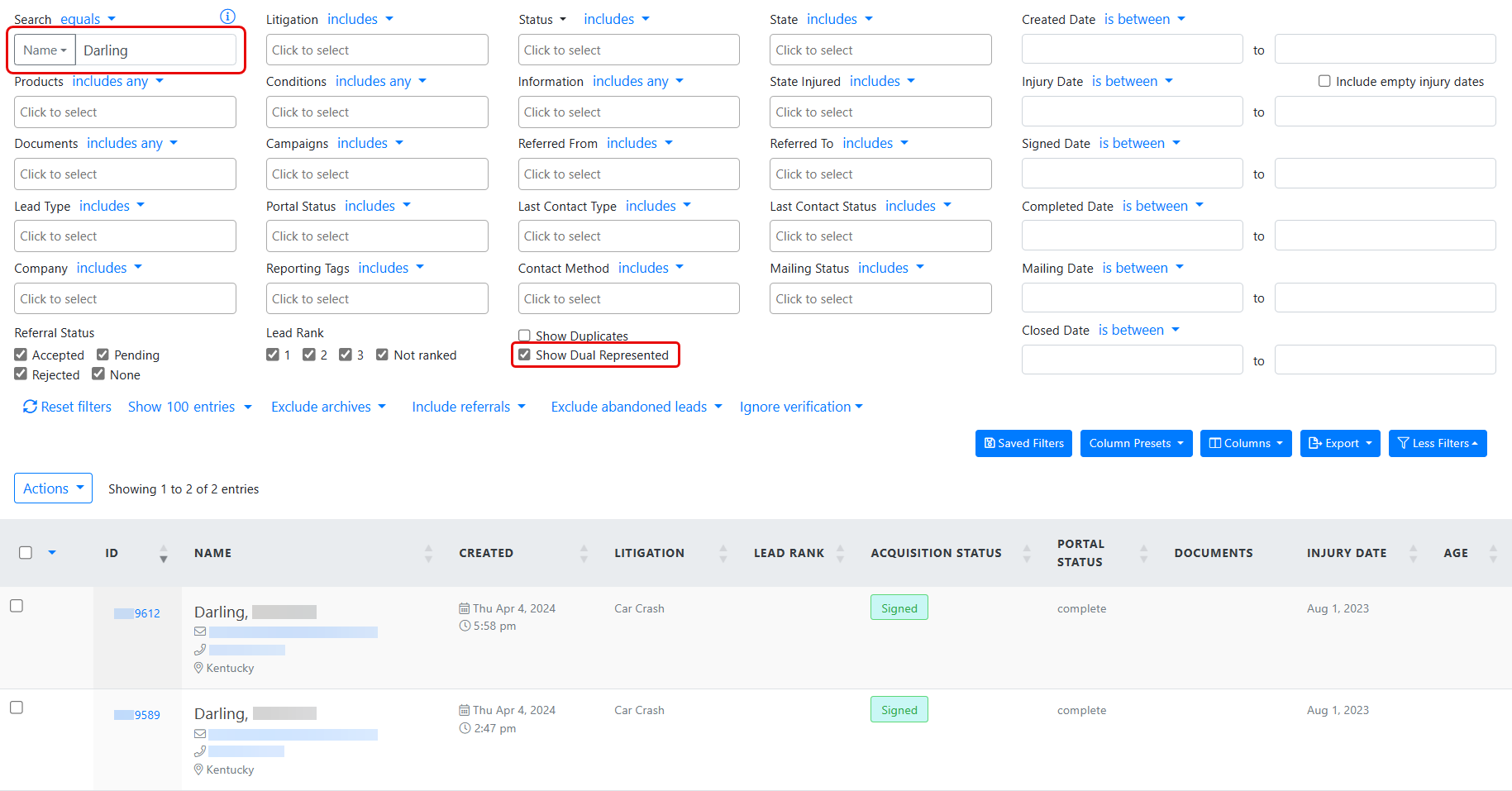
Figure 7. Finding two dual represented cases for a client with the last name “Darling.” (Some data is blurred for privacy.)
NOTE: For more information on filtering the Cases page, see Using Filters to View Your Cases.
Verifying That Two Cases are Dual Represented
It’s a good idea to verify that the cases are actually dual representation cases before taking any action on them. Here’s how to do that:
- Open each of the cases in turn, click the Duplicates tab, and look at the Duplicates section of the tab for each case. At least one of the cases will show the other case as its duplicate, according to the Case ID numbers shown on the tab.
- Click the Dual Representation section of the tab (Figure 8). If the cases are dual-representation cases, your firm’s name appears on one of them, and the other firm’s name appears on the other case.
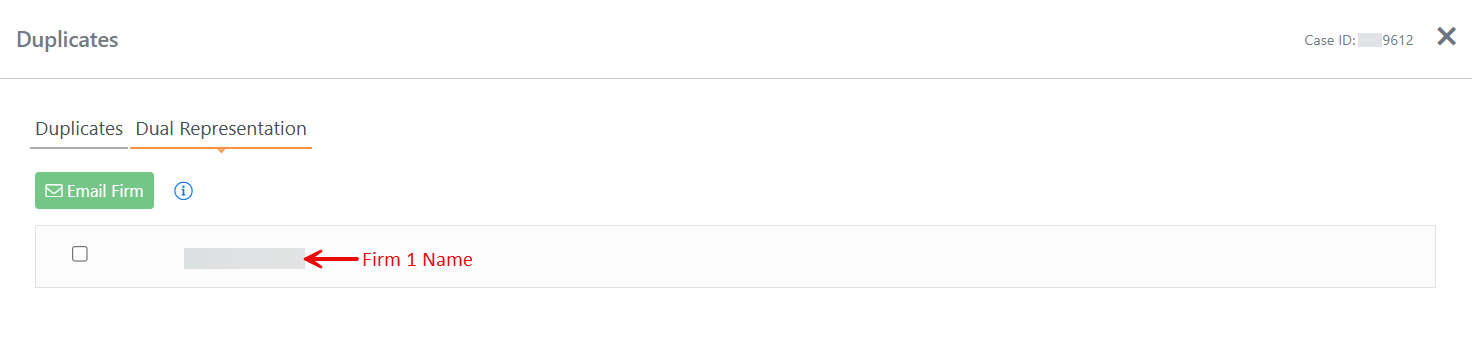
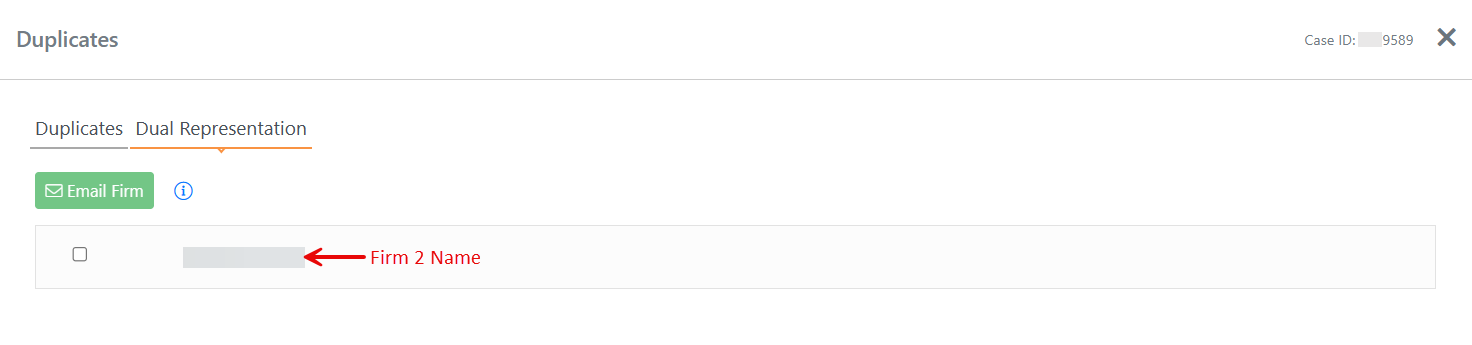
Figure 8. Comparing the Dual Representation section for two cases. (Firm names are blurred for privacy.)
Dealing with a Dual Representation Case
When you have verified that a case is represented by both your firm and a second firm, your firm’s internal process should determine how to handle them. Typically, the first firm to discover the situation contacts the other firm so they can discuss the case and decide either (a) which firm should continue representing the client or (b) if both firms should share the case under a fee-splitting arrangement.
To contact the other firm about the case, do the following:
- Open the case that is being represented by the other firm, click the Duplicates tab, and click the Dual Representation section.
- Click the checkbox by the other firm’s name, then click the Email Firm button (Figure 9). The Dual Representation Email window opens (Figure 10).
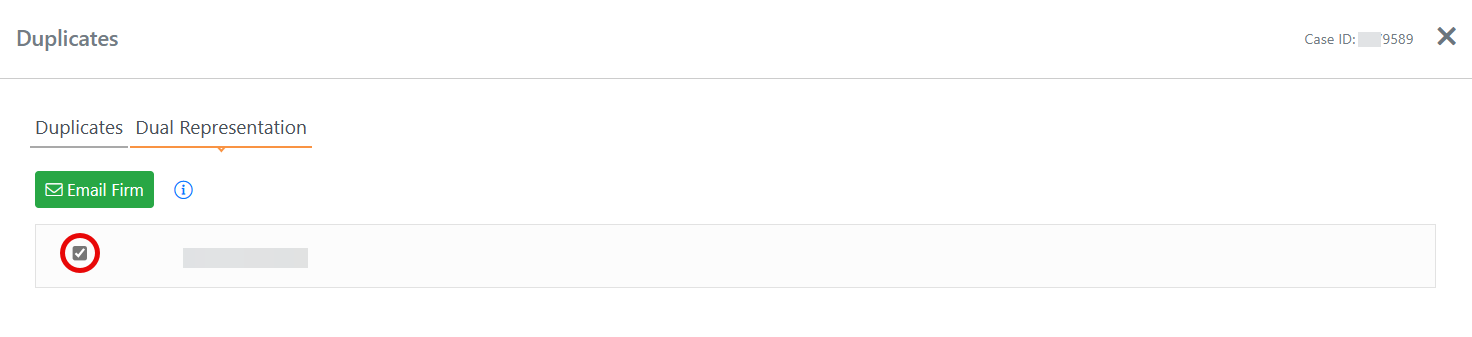
Figure 9. Preparing to send an email to the other firm in a dual representation case.

Figure 10. Creating an email to the other firm regarding a dual representation case. (Some data is blurred for privacy.)
- Click the To field and select or enter the email address of the person at the other firm who should receive the message. To send the message to multiple recipients, separate their addresses with a comma.
- The Subject field is already populated, but you can edit it if you like.
- Click the message composition box to edit the body of the message as you like. You can use the toolbar at the top of the box to format the text and add hyperlinks.
- Click Send to send the message.
If the decision is made that one firm should keep the case and the other firm should drop it, the exiting firm should close and/or archive the case, as described earlier in this article.