If you want to remove a case from the Cases page, you can archive it. Archiving does not delete the case; it simply filters out the case so it is no longer visible on the Cases page. The case remains archived until someone at your firm unarchives it. You can view your firm’s list of archived cases anytime, as described later in this article.
NOTE: There is no way for a user to delete a case from SimplyConvert. If you want to have a case permanently deleted, ask your system administrator for help.
You can archive a case whenever you want, regardless of its current status. You can archive multiple cases at the same time, as well. After archiving cases, you can “unarchive” them, returning them to the list of active cases on the Cases page.
Archiving a Single Case
Here’s how to archive a single case:
- Open the Cases page.
- Filter the client list as needed, as described in Using Filters to View Your Cases.
- Find the case you’re looking for and click its row in the case list. The case opens and the case information tabs appear on the left (Figure 1).
- Click the Archive Record button. The Archive Actions dialog box opens (Figure 2).
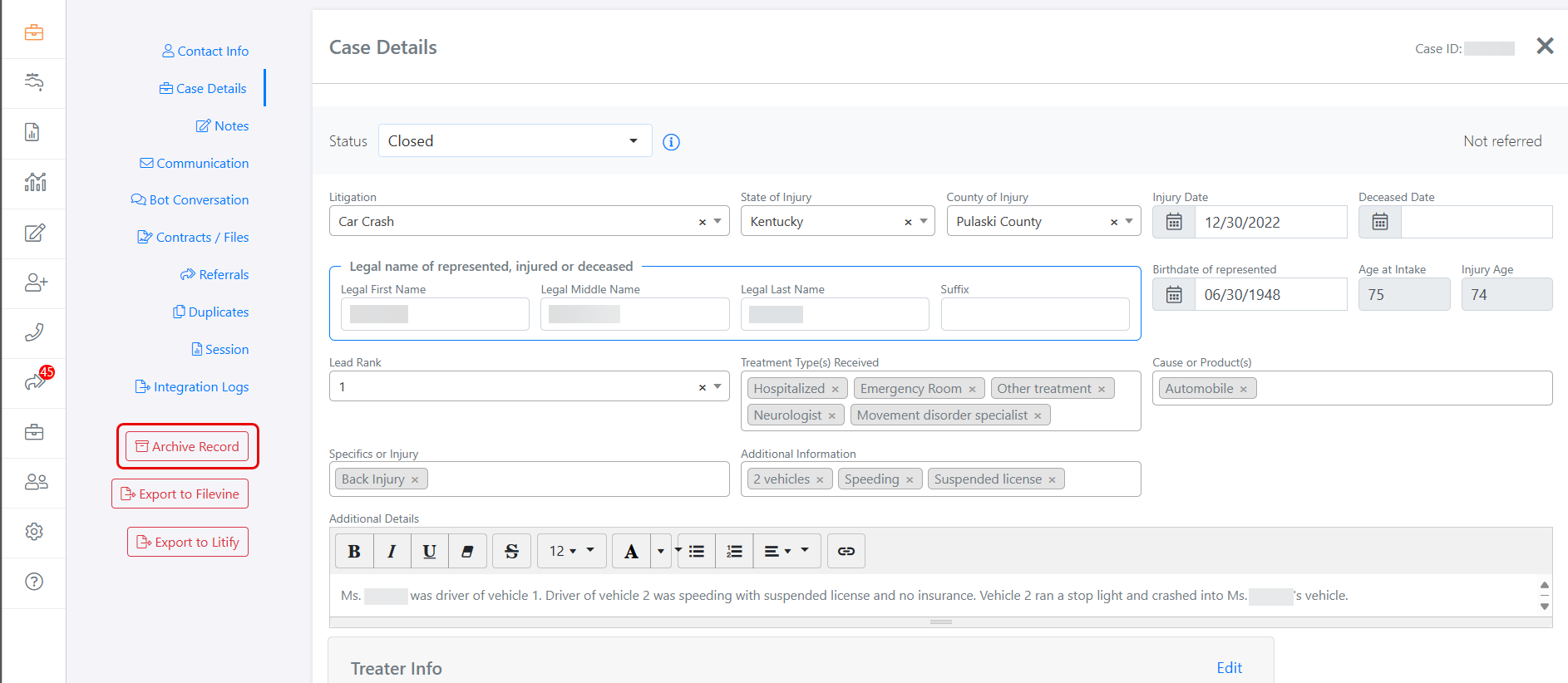
Figure 1. The Archive Record button appears just below the case information tabs.

Figure 2. The Archive Actions dialog box.
- Click Save changes. The case is hidden on the Cases page.
NOTE: You cannot archive a case that has documents pending—that is, documents that are awaiting an action by the client or a review by your firm. If you attempt to archive such a case, the Archive Actions dialog box displays a message stating that the case will not be archived. If you still want to archive the case, you can close the dialog box, open case on the Cases page, click the Communication tab, and void the pending documents, as described in Sharing Documents with a Client. Then try archiving the case again.
Archiving Multiple Cases
You can archive any number of cases at the same time. Here’s what to do:
- On the Cases page, find the cases you want to archive. For example, you might filter for case IDs or clients’ names.
- Select the cases you want to archive by checking the checkbox at the left end of each case’s row (Figure 3).
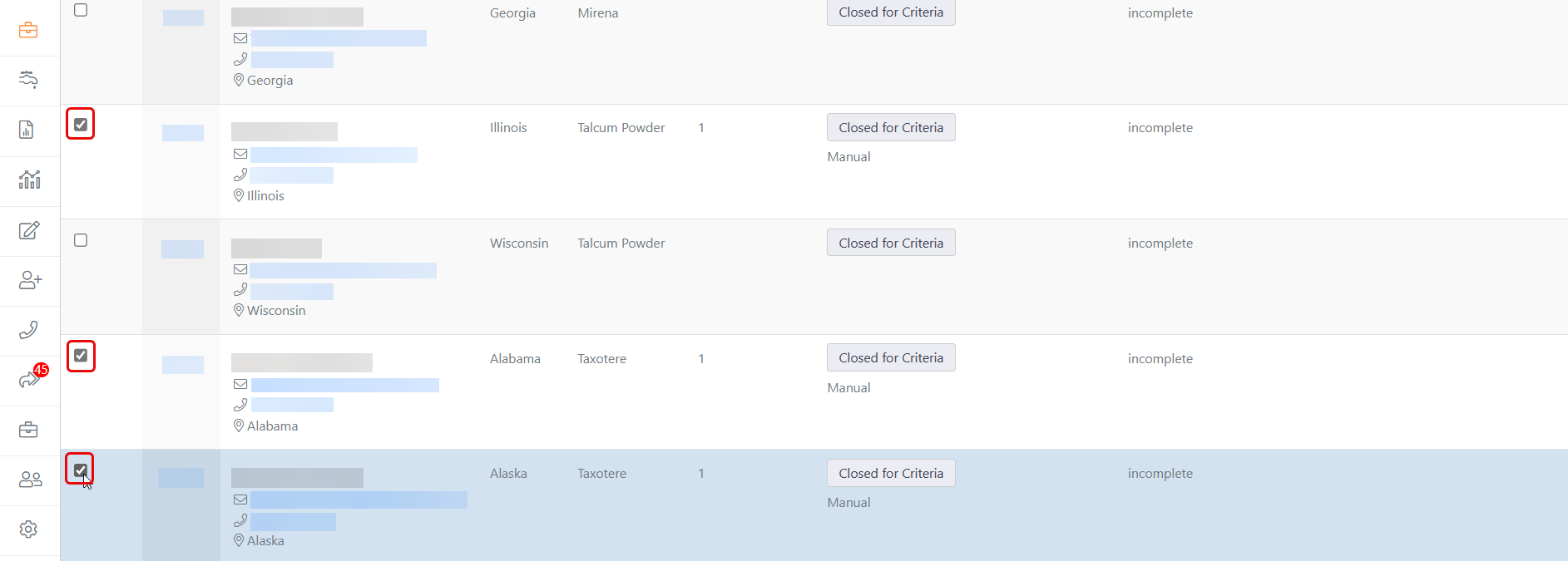
Figure 3. Selecting cases to be archived.
- With the cases selected, scroll up to the filters panel and click the Actions button. A drop-down menu of options opens (Figure 4).
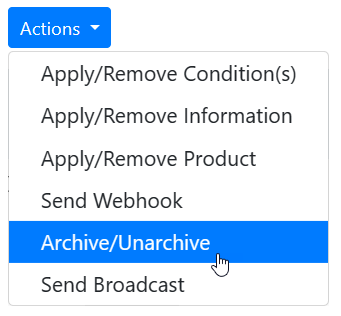
Figure 4. The Actions button’s list of options.
- Click Archive/Unarchive. The Archive/Unarchive Cases dialog box opens (Figure 5). The dialog box shows you how many cases you have selected and gives you the option to either archive or unarchive them.
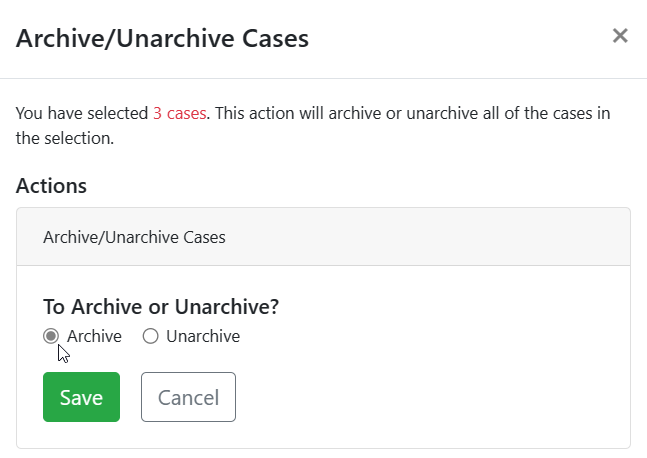
Figure 5. Preparing to archive the selected cases.
- To archive the selected cases, click the Archive option button, then click Save. Depending on whether documents are pending for one or more of the cases, SimplyConvert reacts in one of the following ways:
A. IF NONE OF THE CASES HAS PENDING DOCUMENTS:
-
- The Archive/Unarchive Cases dialog box changes (Figure 6) to notify you that any cases with pending documents will not be archived. In this example, since neither of the selected cases has pending documents, both will be archived.
- Click Process Action. The selected cases are hidden on the Cases page.
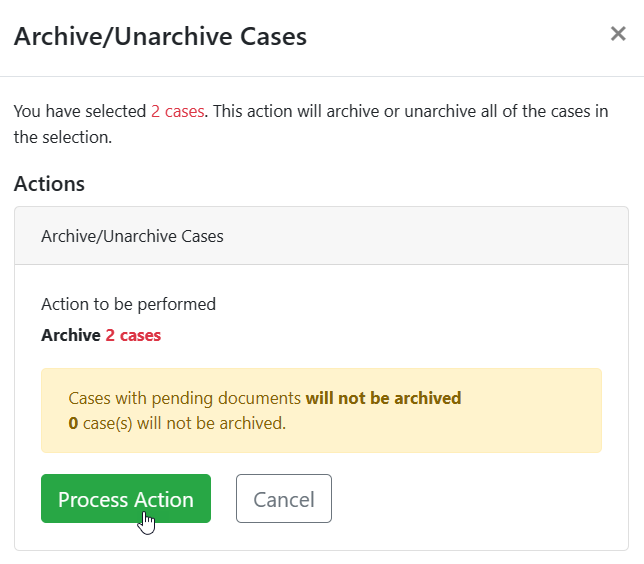
Figure 6. The dialog box when none of the selected cases has pending documents.
B. IF ONE OF THE CASES HAS PENDING DOCUMENTS:
-
- The Archive/Unarchive Cases dialog box changes (Figure 7) to notify you that any cases with pending documents will not be archived. In this example, one of the selected cases has pending documents, so it will not be archived but the other case will be.
- Click Process Action. The case with pending documents stays on the Cases page, while the other case is hidden on the Cases page. If you still want to archive the remaining case, open it on the Cases page and void the pending documents, then try archiving the case again.
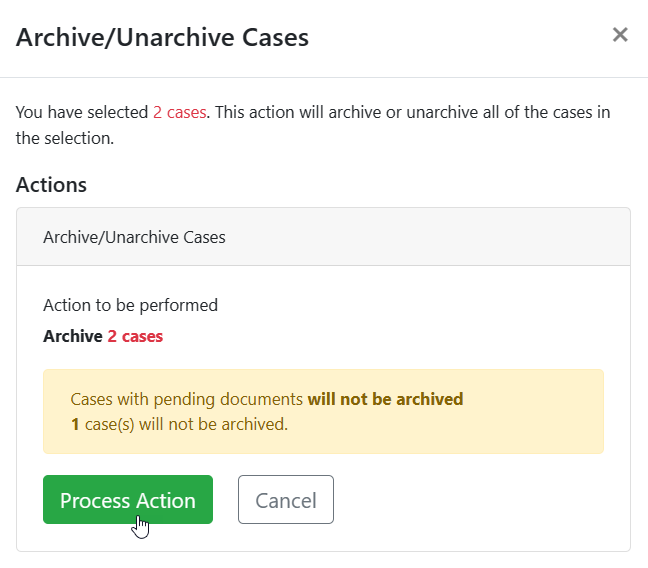
Figure 7. The dialog box when one of the selected cases has pending documents.
C. IF ALL THE CASES HAVE PENDING DOCUMENTS:
-
- The Archive/Unarchive Cases dialog box changes (Figure 8) to notify you that any cases with pending documents will not be archived. In this example, all the selected cases have pending documents, so none will be archived.
- Click Cancel. None of the cases is hidden on the Cases page. If you still want to archive the cases, open them individually on the Cases page and void the pending documents, then try archiving them again.
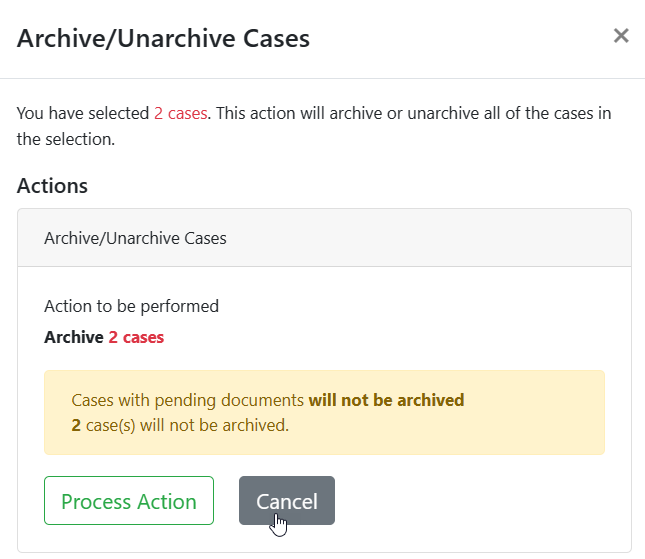
Figure 8. The dialog box when all the selected cases have pending documents.
Viewing Archived Cases
You can view your firm’s list of archived cases anytime, with a single click. Here’s how:
- Point to the left-hand navigation pane and click Archives (Figure 9). This opens the Archives page (Figure 10).
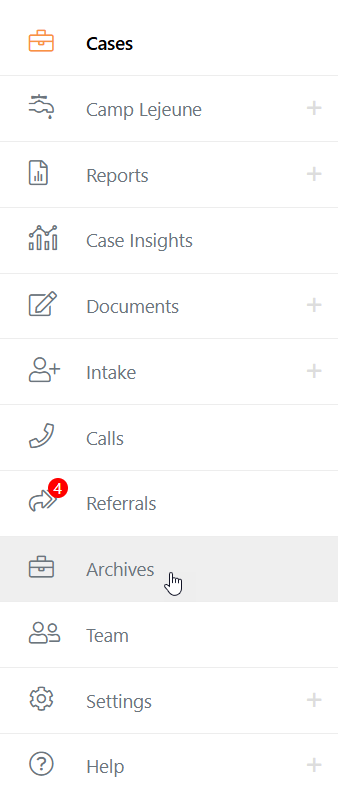
Figure 9. Opening the Archives page.
- Notice that each case is marked with an “Archived” icon just below the case ID, and the case list’s background is shades of pink. If you need to view the details of an archived case, you can find the case by using filters, then click its row to open it, the same way you can find and view a case on the Cases page.
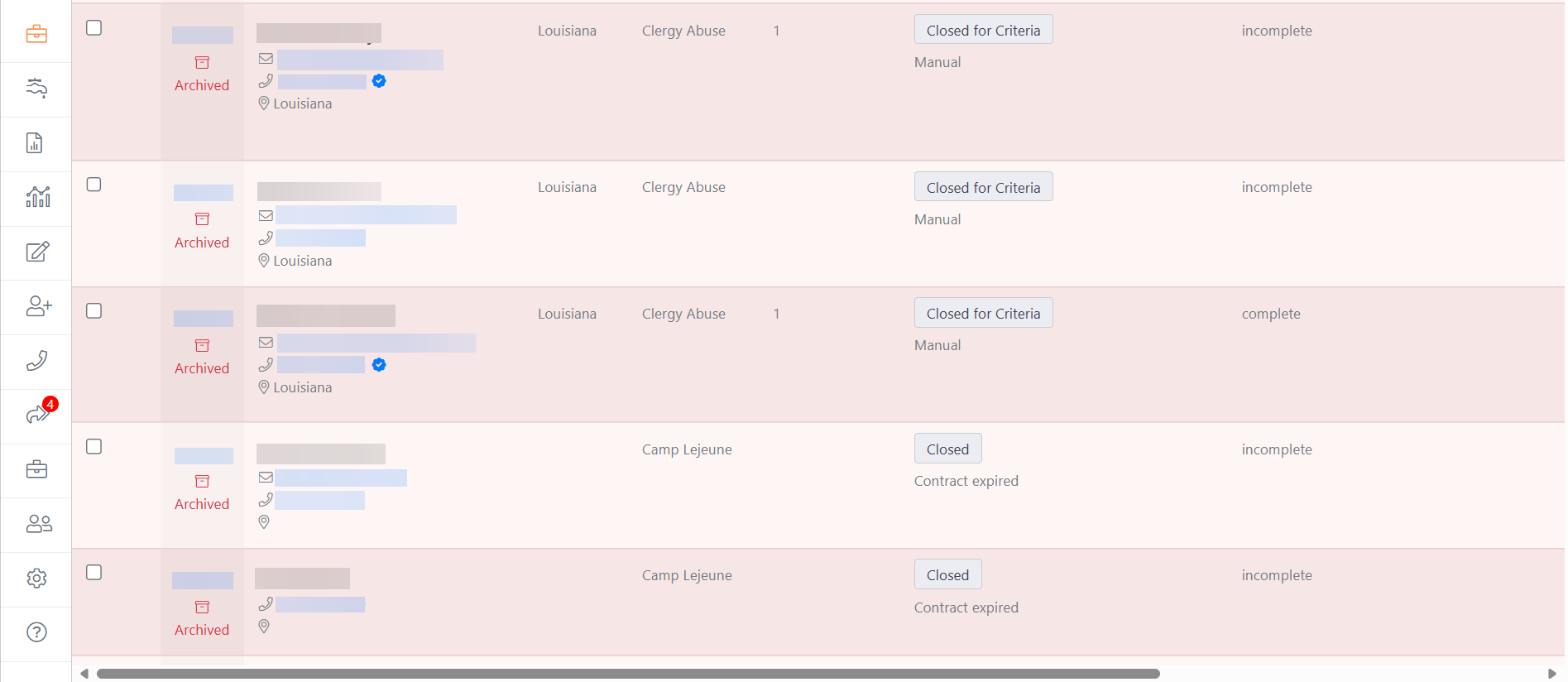
Figure 10. Archived cases listed on the Archives page.
Unarchiving a Single Case
You can restore an archived case back to the Cases page at any time, enabling it to be worked again. Here’s how:
- Open the Archives page.
- Filter the client list as needed, as described in Using Filters to View Your Cases.
- Find the case you’re looking for and click its row in the case list. The case information tabs appear on the left, with the Restore Record button just below the tabs (Figure 11).
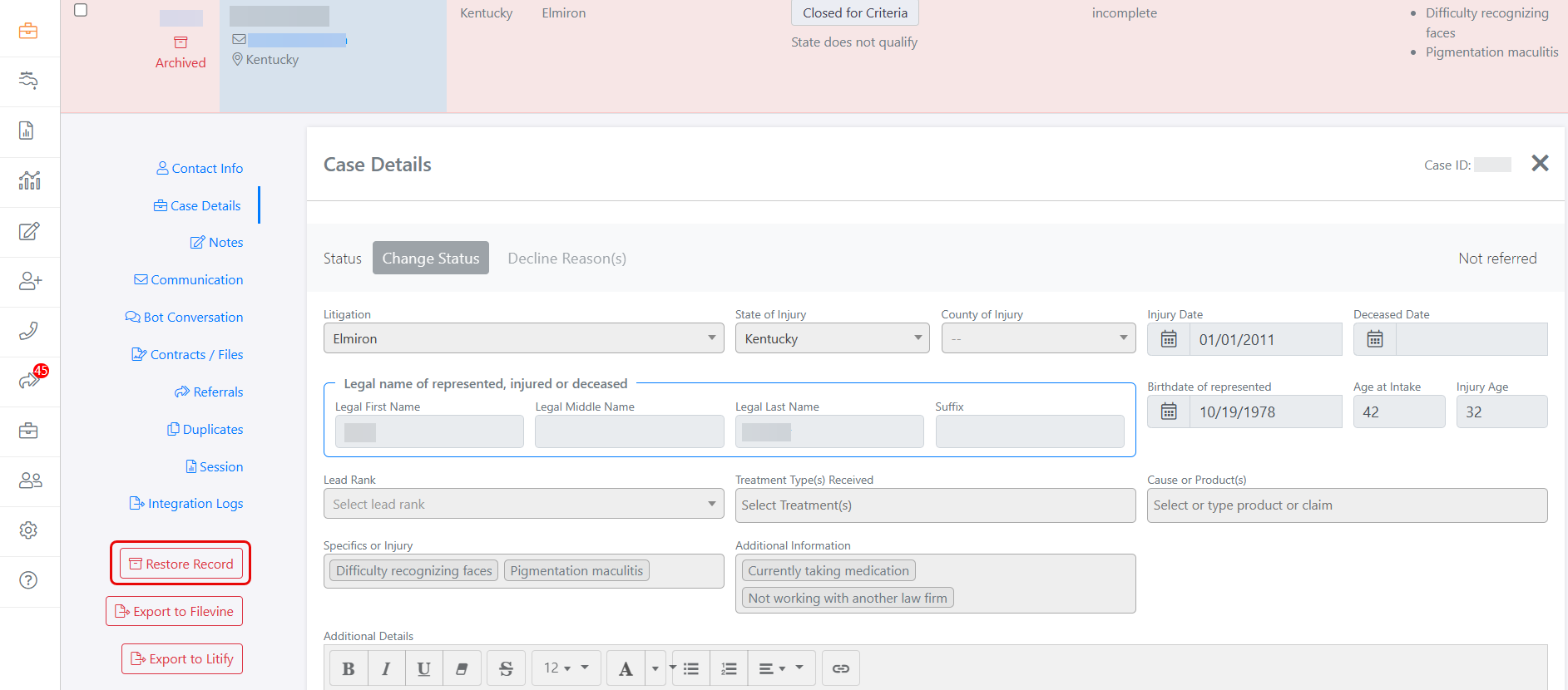
Figure 11. For an archived case, the Restore Record button appears just below the case information tabs.
- Click the Restore Record button. The case is removed from the Archives page and returned to the Cases page. The Cases page opens with the unarchived case displayed.
Unarchiving Multiple Cases
You can restore any number of archived cases at the same time. Here’s what to do:
- On the Archives page, find the cases you want to unarchive. For example, you might filter for case IDs or clients’ names.
- Check the checkbox at the left end of each case you want to unarchive (Figure 12).
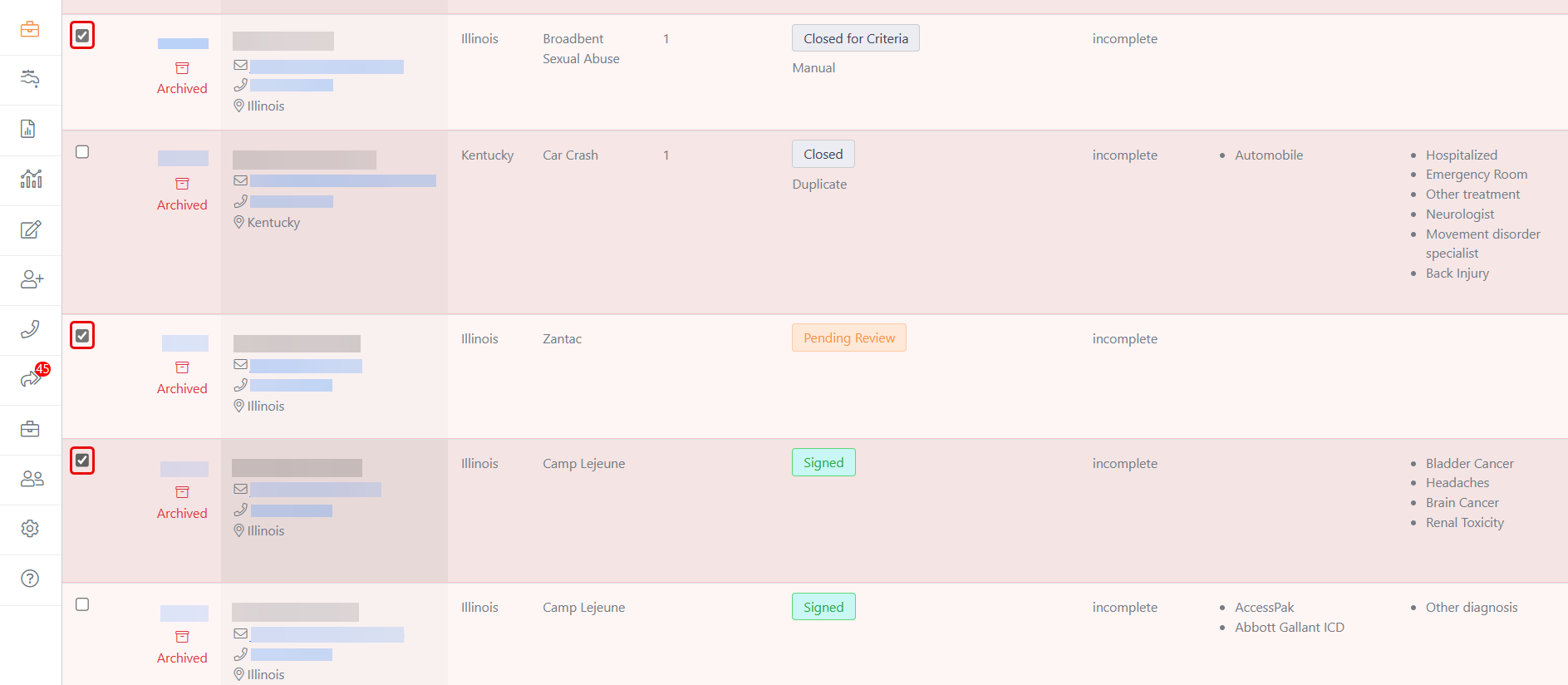
Figure 12. Selecting multiple archived cases for unarchiving.
- With the cases selected, scroll up to the filters panel and click the Actions button. A drop-down menu of options opens (Figure 13).
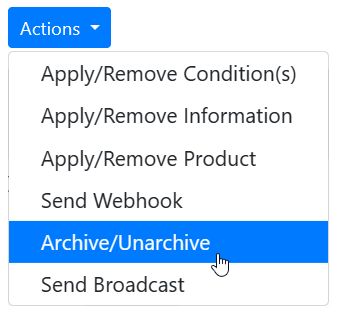
Figure 13. The Actions button’s list of options.
- Click Archive/Unarchive. The Archive/Unarchive dialog box opens (Figure 14). The dialog box shows you how many cases you have selected and gives you the option to either archive or unarchive them.
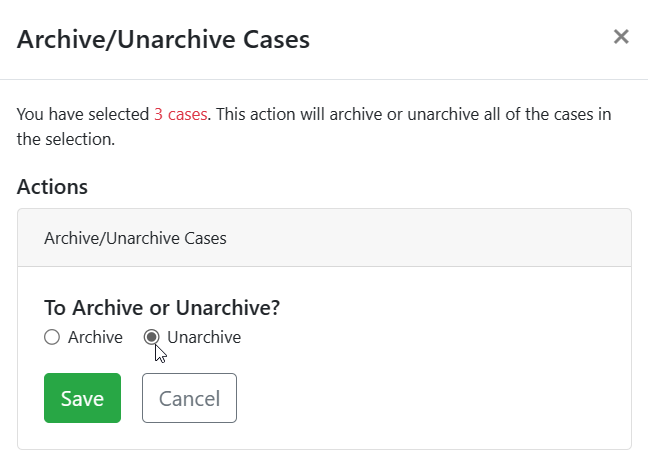
Figure 14. This dialog boxes lets you archive or unarchive selected cases.
- To unarchive the selected cases, click the Unarchive option button, then click Save. The dialog box changes to confirm your choice (Figure 15).
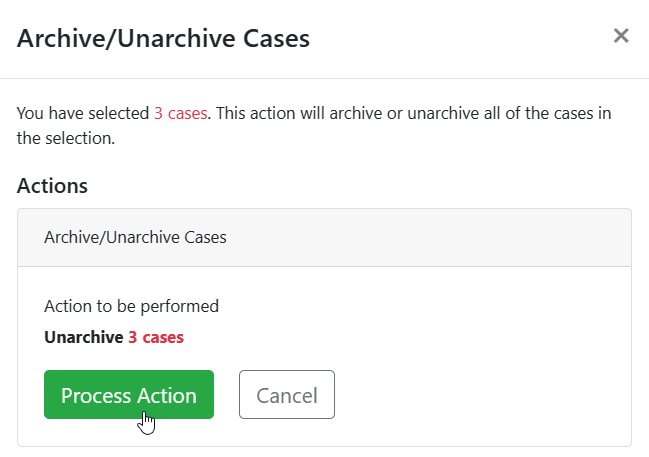
Figure 15. Confirming the unarchiving.
- Click Process Action. The cases are removed from the Archives page and returned to the Cases page.