As soon as a case is added to SimplyConvert, the system creates a unique, web-based client portal for the prospective client or authorized representative identified in the case information. The portal enables your firm to share important case documents—such as your retainer agreement, authorizations, and others—with the client in digital (PDF) format. The client can then open the documents in the portal and take whatever action is required, such as providing a signature or completing fields of required information.
For detailed instructions on sending documents to a client via the portal, see Sharing Documents with a Client.
Depending on your firm’s settings, SimplyConvert can (a) automatically send certain documents to the portal or (b) wait for a user to tell the system to send documents. When a document is delivered to the portal, SimplyConvert can send the client an email and/or text notification that the document is available. When the client opens the portal, they see the document and instructions for acting on it.
NOTE: The exact number and type of documents required for a case to proceed depends on several factors, including the litigation type, applicable state laws, the client’s status as living or deceased, and so on. The examples given here are based on a motor vehicle accident that occurred in the state of New York. The client is the injured party (not a representative) and is not deceased.
SimplyConvert keeps you notified about the status of every document that is sent to the portal, and lets you view or download a copy of any document after the client has acted on it, as described in Sharing Documents with a Client.
Within your firm, any SimplyConvert user with access to the case can view that client’s portal. Outside your firm, only the client or authorized representative can access their portal via a web browser.
NOTE: Portal documents are based on customized templates that include your firm’s preferred language and fillable fields. Certain documents, such as your firm’s retainer agreement, appear on your firm’s letterhead. Contact your system administrator for more details on your firm’s document settings, pre-populated language, etc.
This article shows you how SimplyConvert and the client portal work together over the life of a case, starting from case creation and ending when the client has acted on all documents required to pursue litigation.
At the Start of a Case
A prospective client’s case can be added to SimplyConvert in either of two ways: via the Intake Bot or the Manual Intake Screen. Depending on your firm’s document settings, SimplyConvert can automatically send documents to the client portal when the case is created, as described in the following sections.
The Intake Bot
A new client may encounter the SimplyConvert Intake Bot in a variety of online settings, such as your firm’s website or an advertisement. The bot guides the client through a series of guided questions about their name and contact information, type of injury, how the injury occurred, and so on (Figure 1).
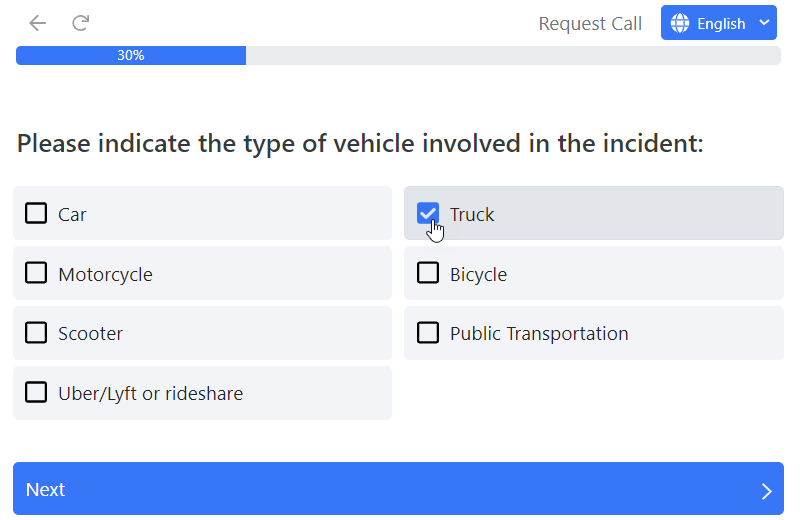
Figure 1. Interacting with the Intake Bot via a web form.
When the session is done and the client submits their answers, the bot sets up a new case in SimplyConvert and uses the information to fill in the basic case details. The application then notifies one or more persons in your firm that a potential client has inquired about your services.
If your system is configured to do so, the bot can automatically determine if (a) the case information qualifies the client to receive a retainer agreement and (b) send an agreement to the client’s newly created portal. If not, the bot saves the new case in Pending Review status so your firm can review the case details and decide whether to send a contract. Either way, SimplyConvert can send a welcome message to the client’s email address (Figure 2) and/or phone, if configured to do so.
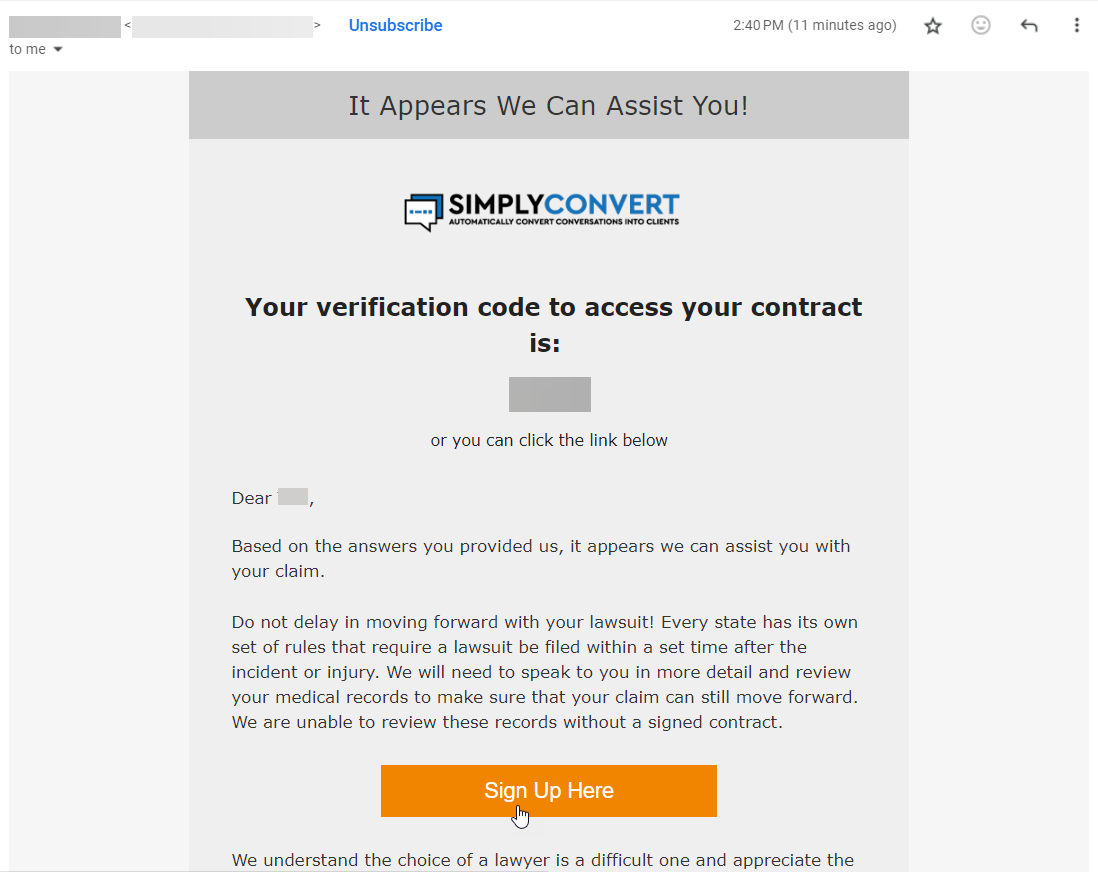
Figure 2. A welcome email message, sent to a prospective client.
Manual Intake
If a prospective client does not use the Intake Bot, they will most likely contact your firm via phone or email. Then someone at your firm can walk the client through the intake process, using SimplyConvert’s Manual Intake screen to record the information and set up the case (Figure 3).
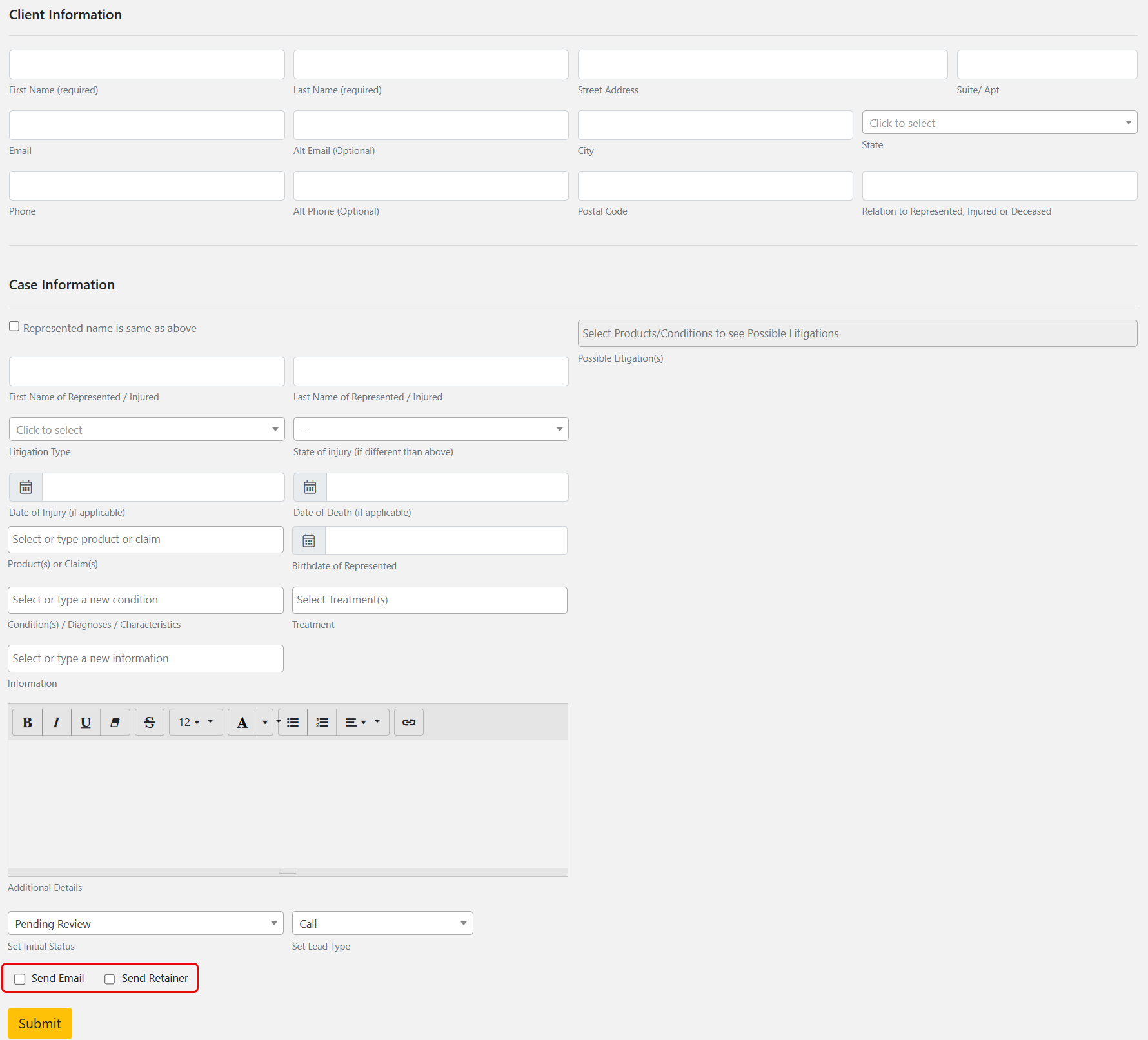
Figure 3. The Manual Intake Screen.
Near the bottom of the screen, there is a checkbox you can select that tells SimplyConvert to send a welcome email message to the client, like the one shown previously, in Figure 2. Another checkbox tells the application to send a retainer agreement to the client portal. (SimplyConvert automatically customizes the agreement to include specific case information and any required fillable fields, and places the contract on your firm’s letterhead.) If the boxes are not checked, the application does not send either item.
NOTE: After sending a welcome message or an agreement to the client, SimplyConvert can automatically deliver a set of follow-up messages encouraging the client to take further action. The reminders go to the client’s email and/or phone, not to the client portal. For more information, see Sharing Documents with a Client.
The Retainer Agreement
If SimplyConvert is not configured to send an agreement automatically, the client portal remains empty (Figure 4), and the Files tab for the client’s case shows that no documents have been sent (Figure 5). The portal and the Files tab stay that way until you manually send an agreement.
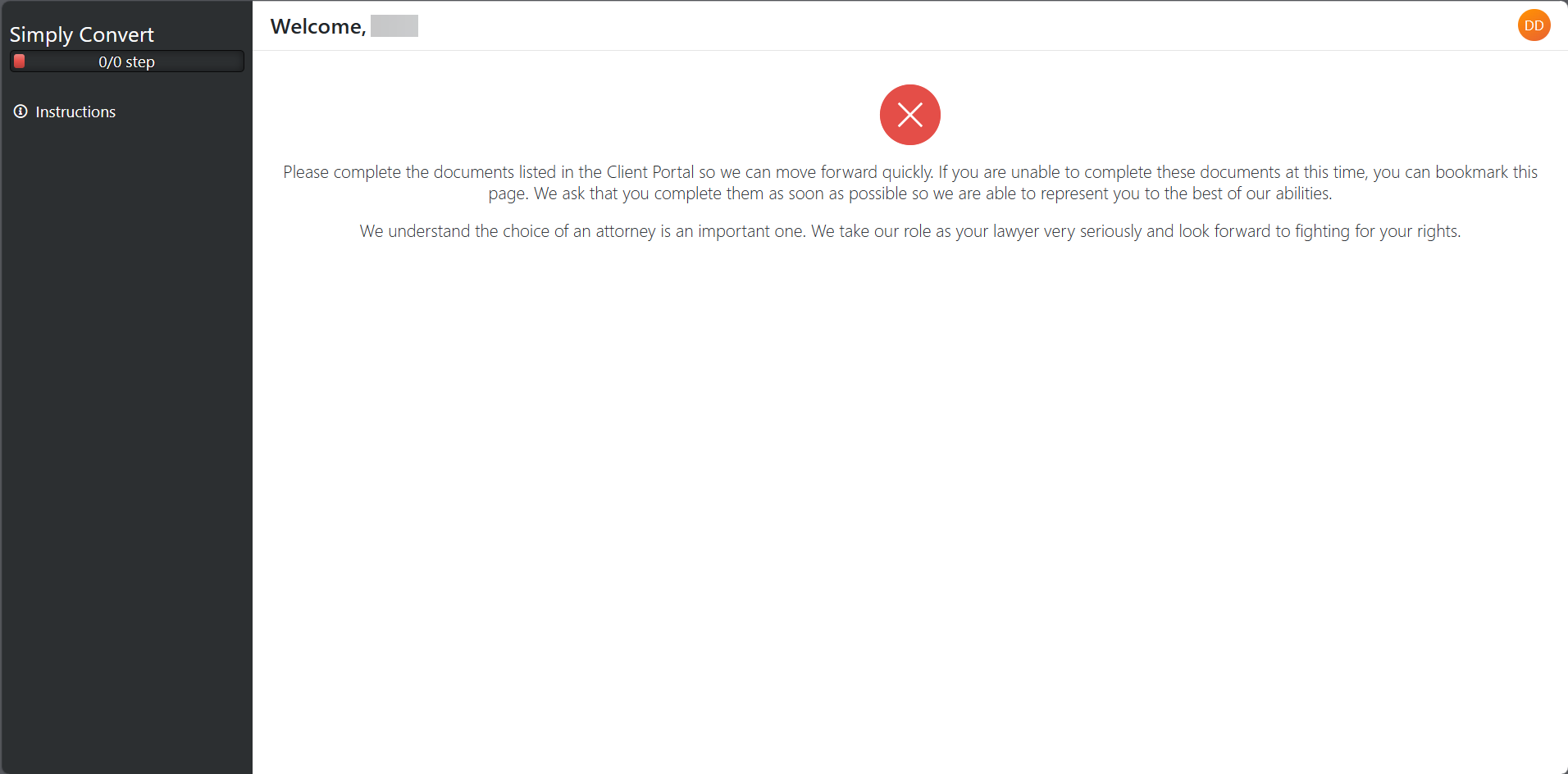
Figure 4. The client portal before any documents have been sent to it.
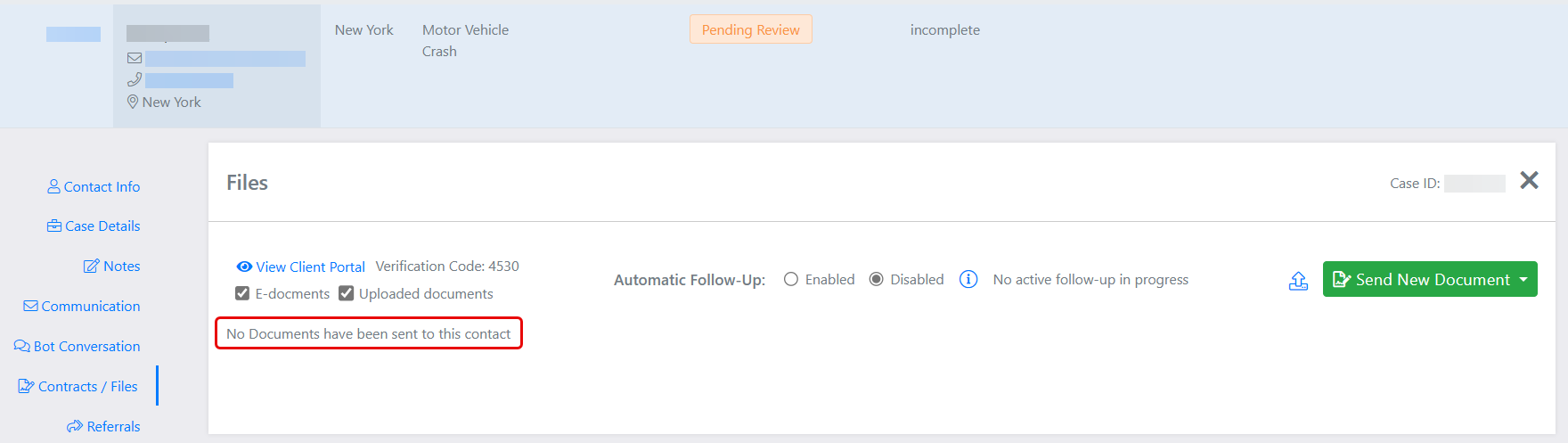
Figure 5. The Files tab for the client’s case before any documents have been sent to the client.
However, when the agreement is sent either automatically or manually, it appears on both the portal (Figure 6) and the Files tab (Figure 7).
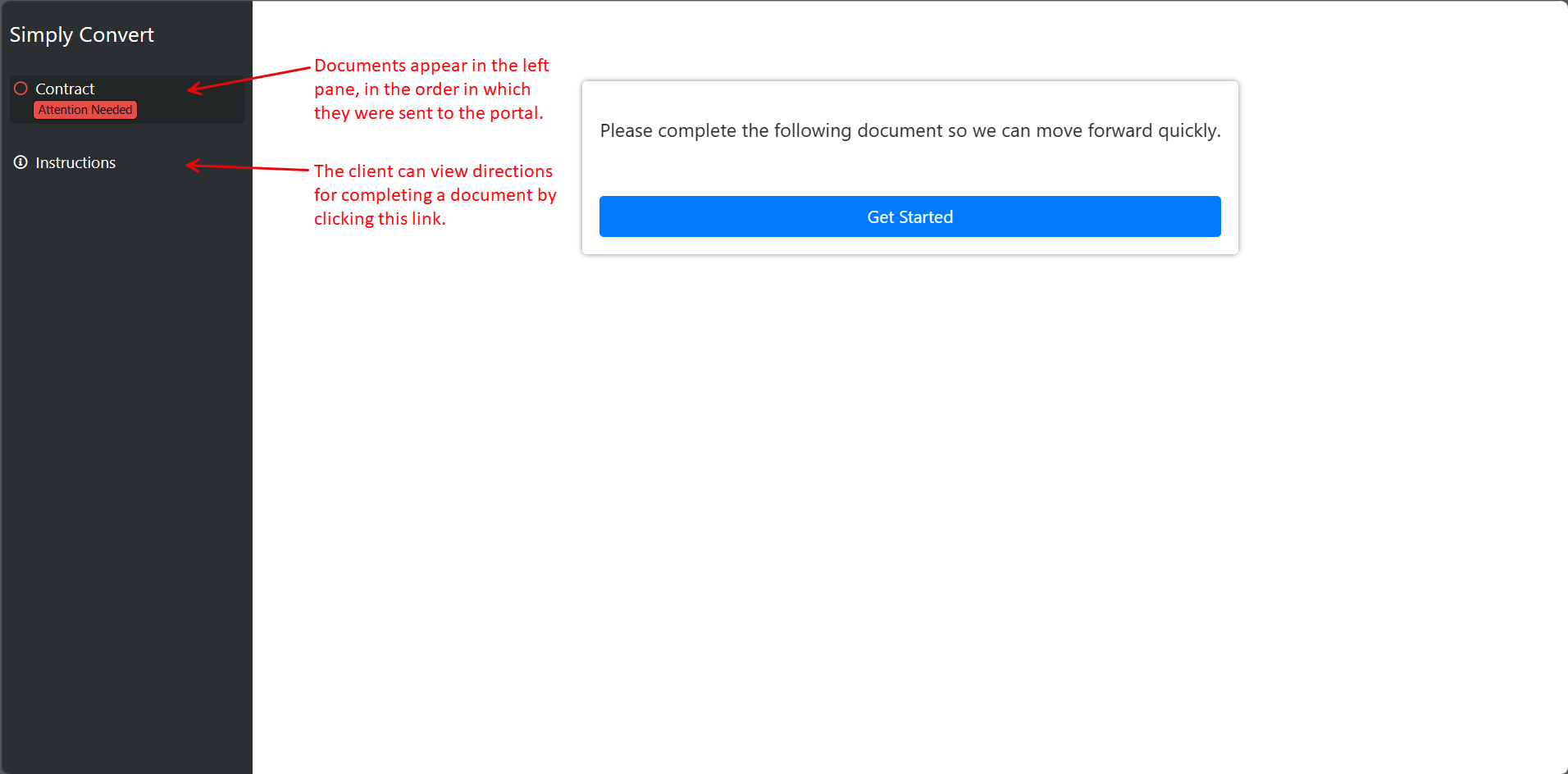
Figure 6. The client portal after the retainer agreement has been sent to it.
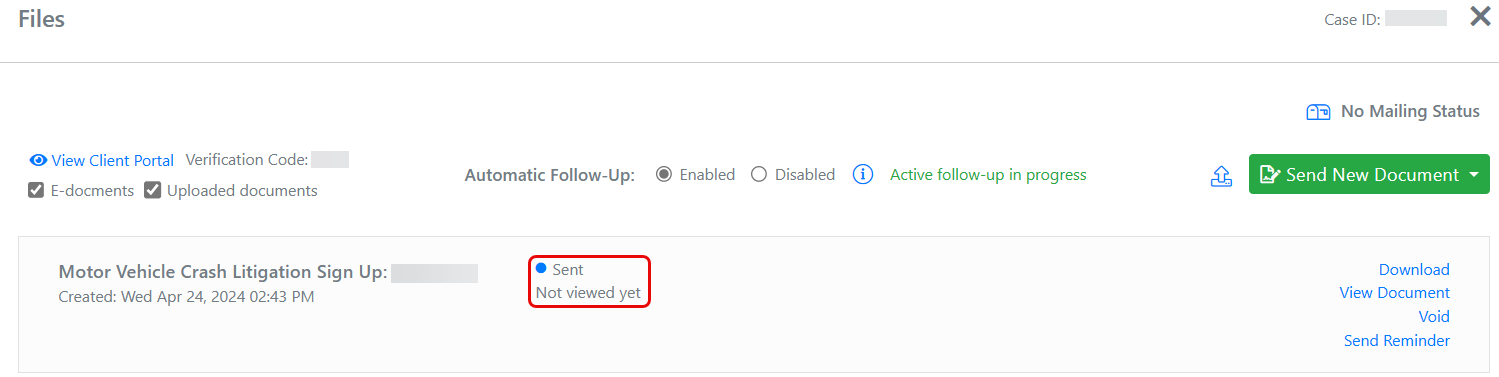
Figure 7. The Files tab now shows that the agreement has been sent to the portal.
When the client opens the portal as directed by a notification, they can click the Get Started button to open the agreement. The PDF provides directions that walk the client through the process of completing and signing the contract (Figure 8). This typically involves providing initials at various points in the contract and a signature at the bottom. Some or all of the fillable fields may be pre-populated with data picked up from the case details; otherwise, the PDF directs the client to add missing data to the fields.
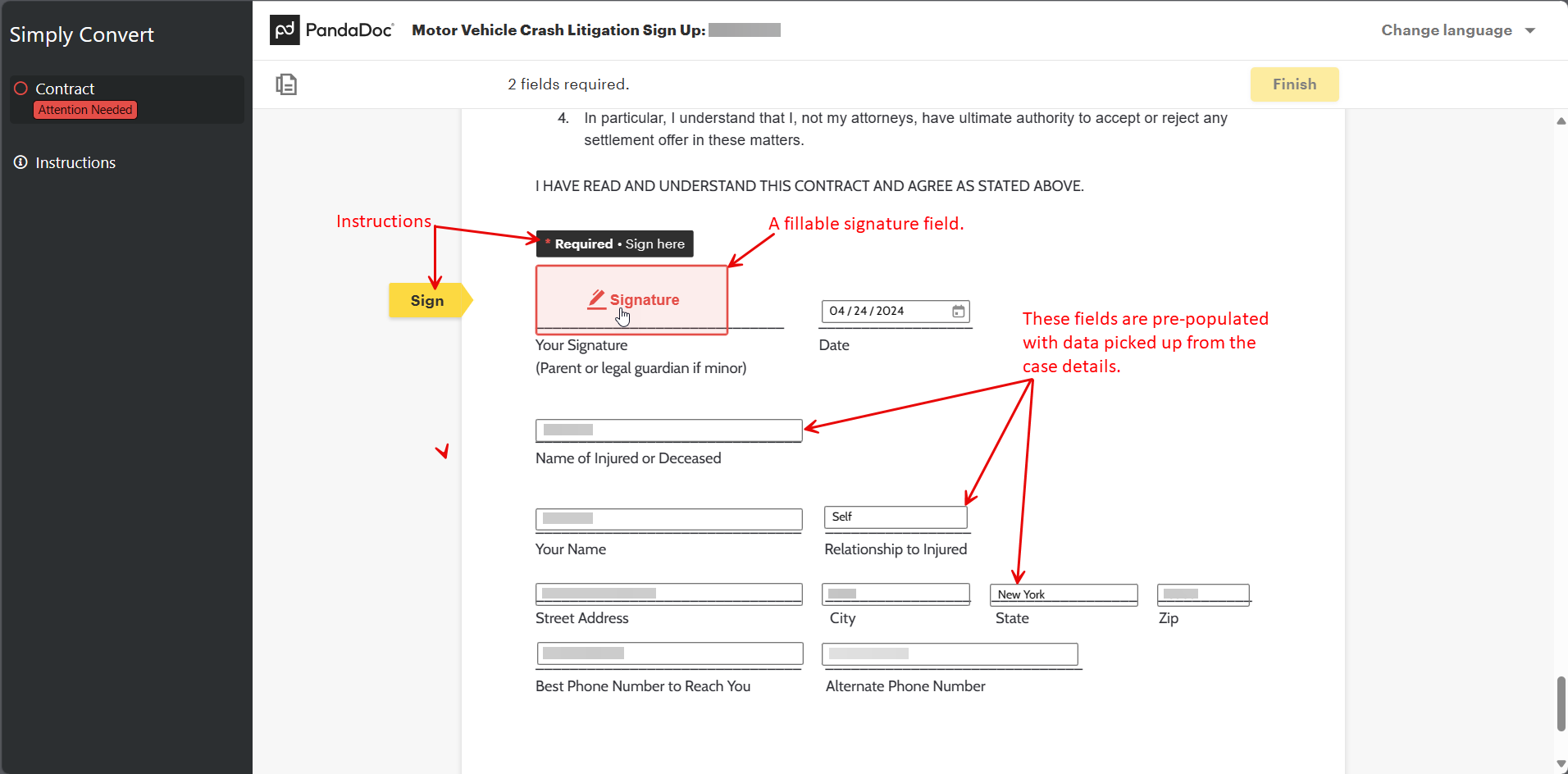
Figure 8. Completing a retainer agreement on the client portal. (Some data has been blurred for privacy.)
When the client fills out and signs the agreement, the Files tab updates to show that the contract has been signed (Figure 9).
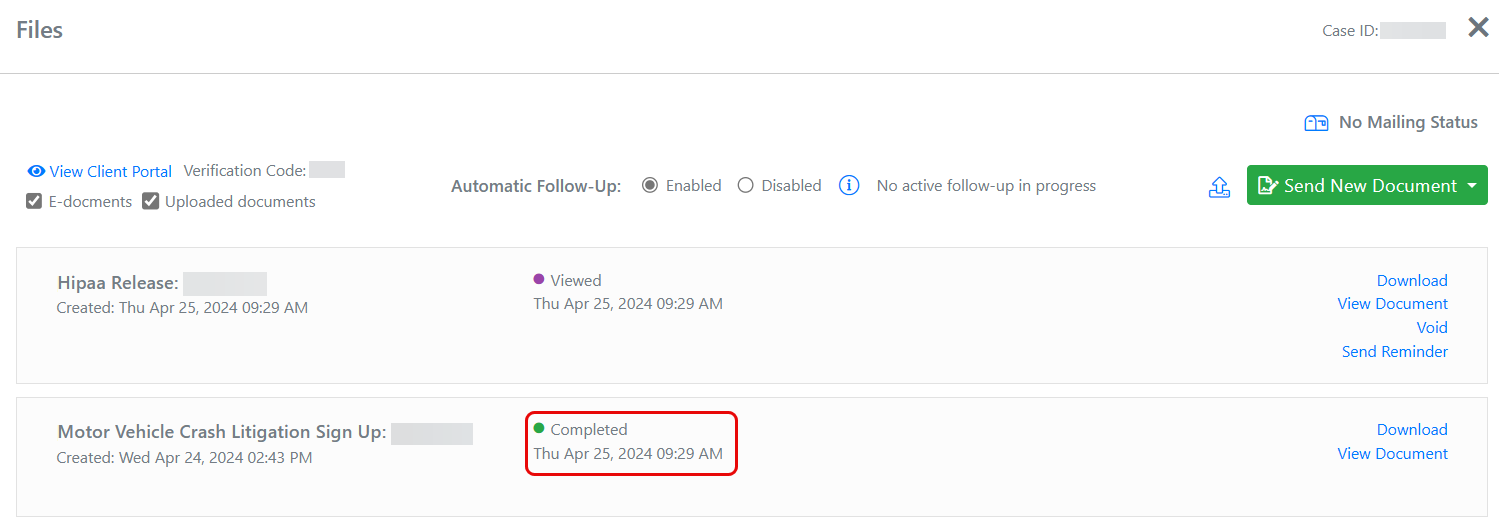
Figure 9. The updated Files tab.
Other Documents
In Figure 9, notice that the tab also shows that a HIPAA Release form was sent to the portal as soon as the client completed the retainer agreement. In this example, SimplyConvert is configured to send the authorization to the portal when the client executes the contract. Additionally, the system sends a HITECH authorization and a request for information about the healthcare providers that treated the client for their injury or illness (Figure 10). If your installation of SimplyConvert is not set up to send the additional documents automatically, you can send them manually, as described in Sharing Documents with a Client.
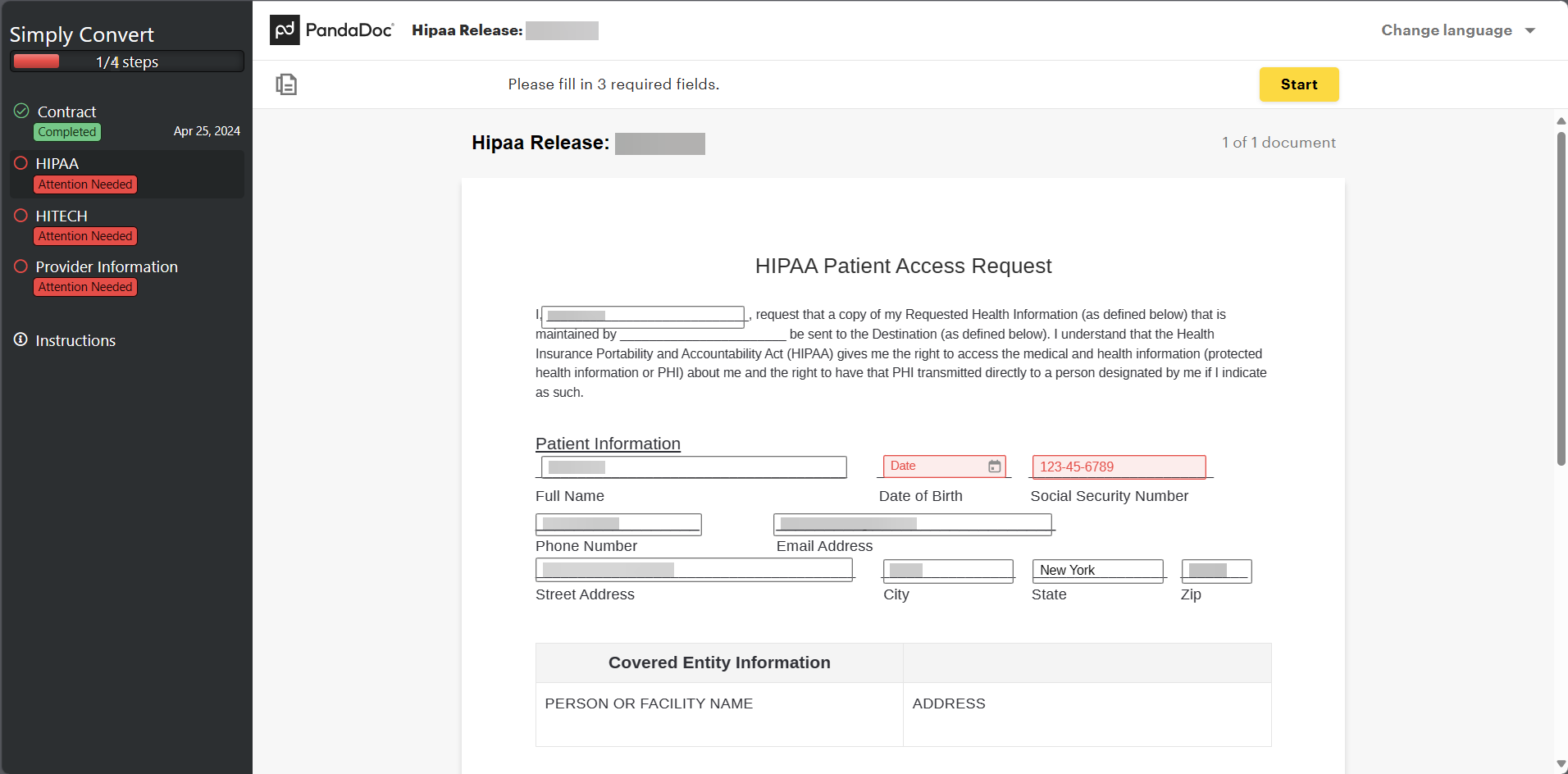
Figure 10. The portal with the HIPAA Release and other documents ready for the client to act on.
Again, the client follows the on-screen directions to complete each document, and the Files tab updates each document’s status as “Completed” (Figure 11). Although the Treater Information does not show the word “Completed,” you can click the View or Download button to see the information, which also appears at the bottom of the Case Details tab.
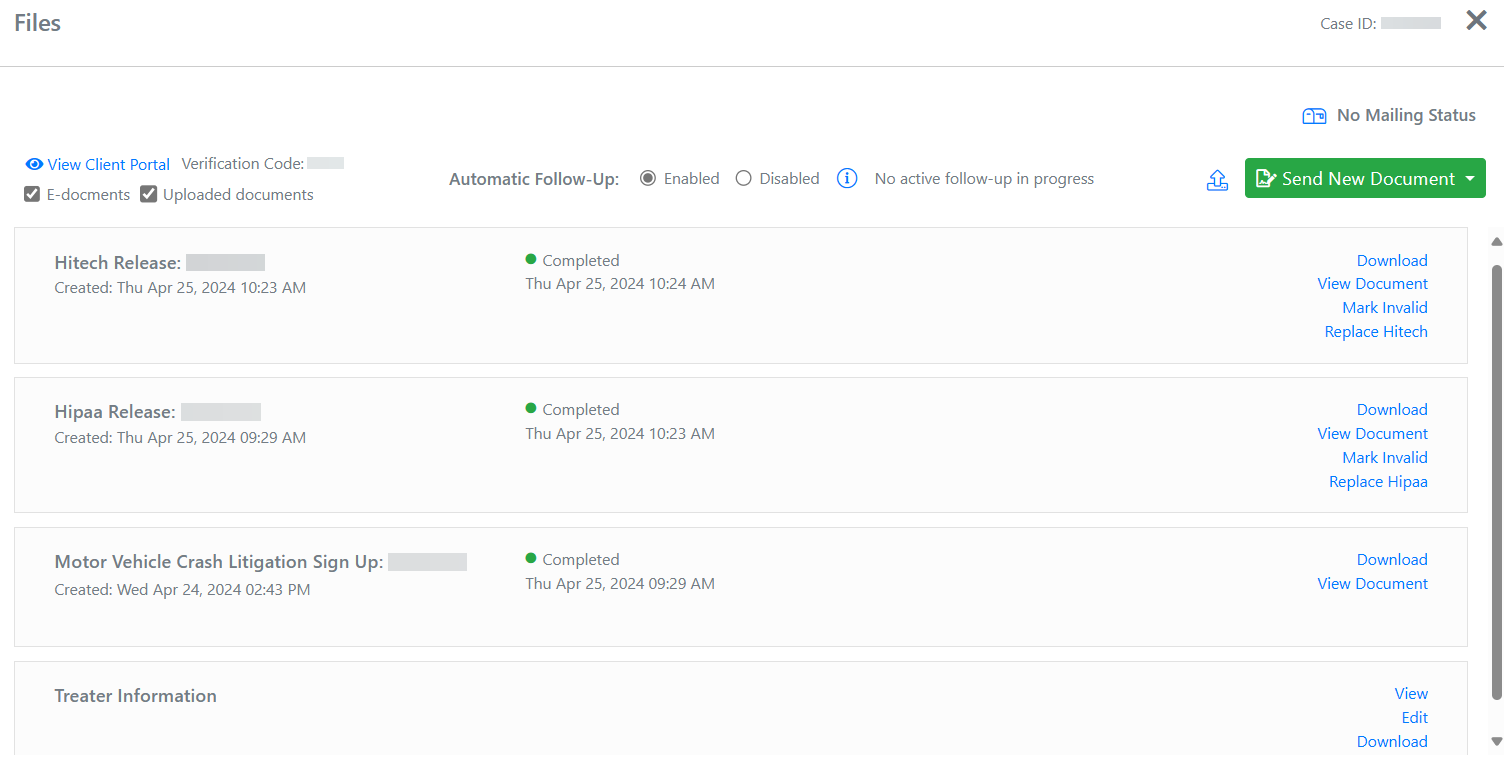
Figure 11. The Files tab, updated to show that the client has completed the additional documents.