SimplyConvert enables you to (1) refer cases to other firms that also use SimplyConvert, and (2) identify cases that have been referred to you by other firms. You can use this information when filtering or searching for cases on the Cases page.
NOTE: The following instructions assume that your firm and the referral firm both use SimplyConvert. If the referral firm does not use SimplyConvert, it will not have the options described here for accepting or declining a case.
Referring a Case to Another Firm
When you (as the referring firm) refer a case to another firm (the referral firm), your installation of SimplyConvert shares the case information with that firm via email and adds the case to the referral firm’s installation of SimplyConvert. The case is labelled “Referral Pending” in both firms’ copies of SimplyConvert.
Take the following steps to refer a case to another firm:
- Open the Cases page.
- Filter the client list as needed, as described in Using Filters to View Your Cases.
- Find the case you’re looking for and click its row in the case list. The case opens and the case information tabs appear on the left.
- Click Referrals to open the Referrals tab (Figure 1).
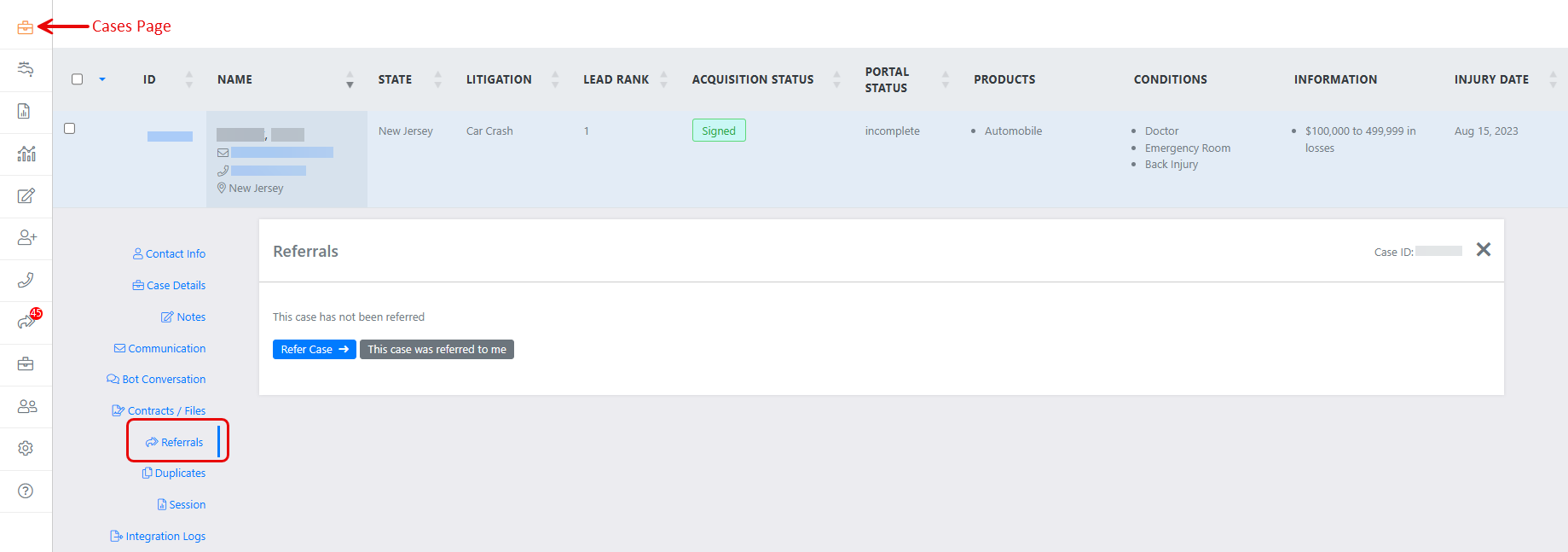
Figure 1. The Referrals tab.
- Click the blue Refer Case button. The Refer this case dialog box opens (Figure 2).
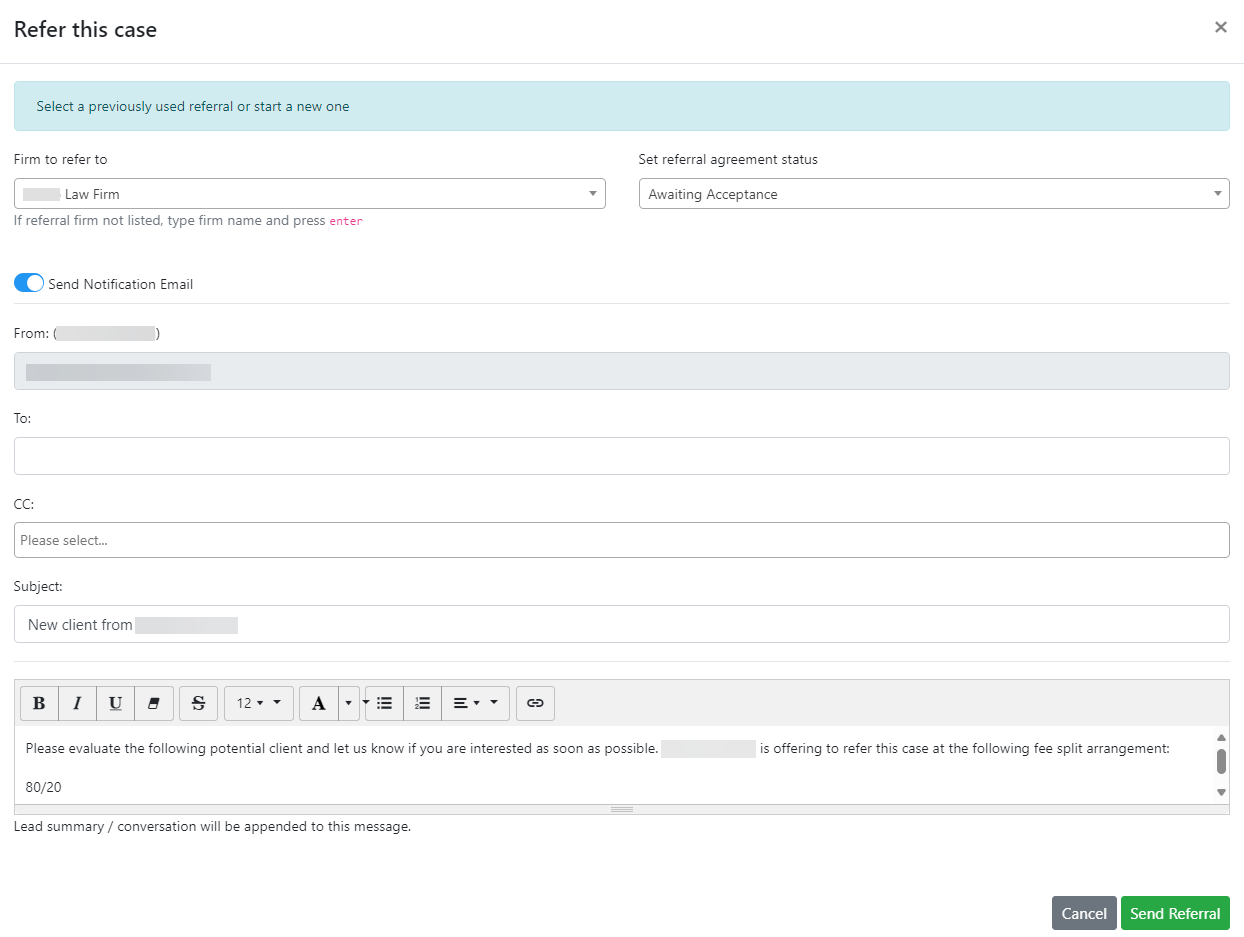
Figure 2. Complete the fields in this dialog box to refer the case to another firm.
- Click the Firm to refer to field’s drop-down arrow and select a firm from the list. If the firm does not appear in the list, type its name in the field and press Enter.
- Click the Set referral agreement status field’s drop-down arrow and select the appropriate status:
-
- Awaiting Acceptance. This status indicates that the referral has been sent and you are waiting for the referral firm to accept the case.
- Accepted. This status is automatically applied when the referral firm accepts the case in its installation of SimplyConvert.
- Expired. Select this status if the referral firm exceeds the deadline you set for accepting the case.
- Voided. Select this status to indicate that you have cancelled the referral. You can refer the case to a different firm if you like, following these same instructions.
You can return to the dialog box at any time to update the status manually.
NOTE: If you change the status to Expired or Voided, it is considered best practice to send a message explaining why to the referral firm.
- Make sure the Send Notification Email switch is on, as shown in Figure 2.
- Click the To box and enter the email address of the person who should receive the notification. To send the message to multiple recipients, separate their email addresses with commas. If you are sending the referral to a company that is included on the SimplyConvert dashboard, the To field populates with the email addresses of everyone at the referral firm that has their referral notifications set to “on.” This is helpful if you are not sure who should receive the referral.
- To copy the email message to someone, click the CC box and enter the email address. To copy the message to multiple recipients, separate their email addresses with commas.
- The Subject field is pre-populated with a standard subject, but you can edit the field.
- Click the large text box and type the body of your message. You can use the toolbar above the text box to format your message and insert hyperlinks.
- Click Send Referral. SimplyConvert adds summary information about the case to the message, along with a copy of the bot conversation that initiated the lead, if one exists. When the message is sent, the Referrals tab changes its appearance so you can take further action on the referral (Figure 3). The tab now contains two buttons: Edit Referral and Remove Referral.

Figure 3. The Referrals tab looks like this after you refer a case to another firm.
How A Referral Firm Responds to a Referred Case
When you refer a case, the contact at the referral firm receives an email notification like the one shown in Figure 4. The notification includes:
- The message you composed in the Refer this case dialog box.
- Basic information about the case.
- Two buttons: Accept Referral Offer and Reject Referral Offer.
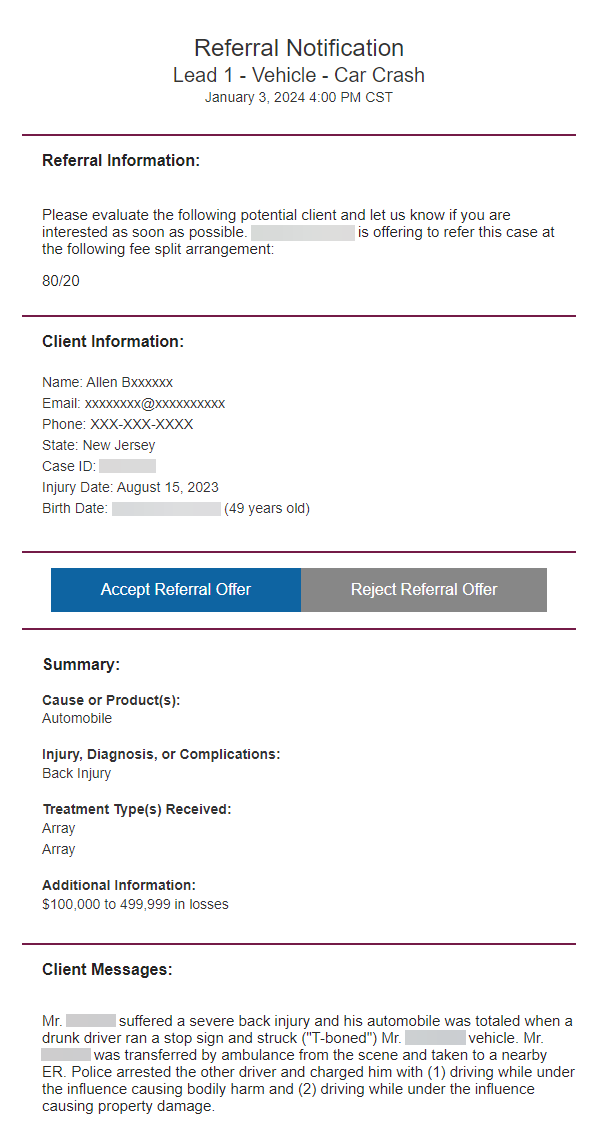
Figure 4. An example of a referral message received by a referral firm.
NOTE: The information provided here works only for referral firms that use SimplyConvert. You can use the Referrals tab to send a referral notification to a non-SimplyConvert firm, but the Accept and Reject buttons in their notification will not function. Instead, it’s best to follow up with the referral firm by telephone or email, then edit the Referrals tab yourself to update the case’s status. This enables you to designate the case as referred in the system or to remove the original referral and refer the case to a different firm.
NOTE: This information also applies to your firm if another SimplyConvert firm refers a case to you. You can accept or reject the case as described here.
The referred case also appears on the Cases page and the Referrals tab in the referral firm’s installation of SimplyConvert (Figure 5). Notice that the case’s card displays “Referral Pending” in red letters. The user can respond to the referral by using the Accept Case or Decline Case buttons.

Figure 5. The case as it appears in the referral firm’s installation of SimplyConvert.
How a Referral Firm Accepts a Case
The referral firm takes the following steps to accept a referred case:
- Click the Accept Case button on the Referrals tab. The Accept this case dialog box opens (Figure 6).
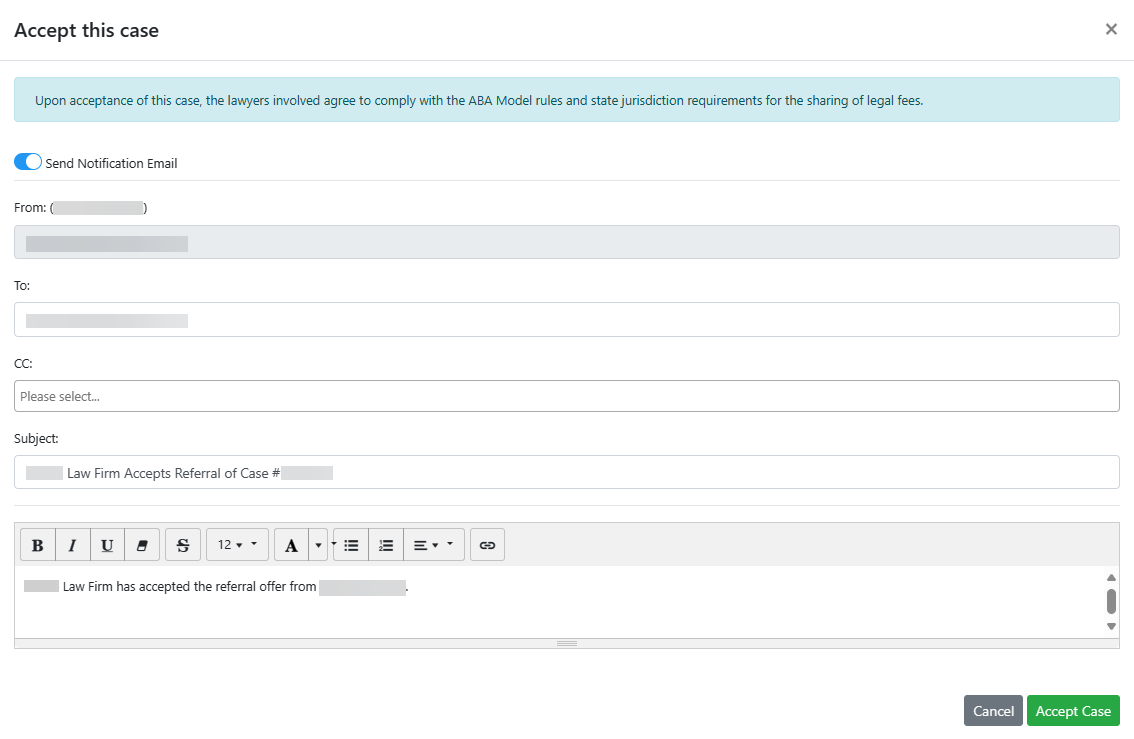
Figure 6. The Accept this case dialog box.
- Make sure the Send Notification Email switch is on, as shown in Figure 6.
- Click the To box and enter the email address of the person who should receive the reply, if the address doesn’t already appear there. To send the message to multiple recipients, separate their email addresses with commas.
- To copy the email message to someone, click the CC box and enter the email address. To copy the message to multiple recipients, separate their email addresses with commas.
- The Subject field should already be populated, as shown in Figure 6, but edit it as needed.
- Click the large text box and type the body of the message. Use the toolbar above the text box to format the message and insert hyperlinks.
- Click Accept Case.
The case remains in the referral firm’s installation of SimplyConvert. In the referring firm’s installation, the case’s status automatically updates to Accepted (Figure 7).

Figure 7. The referring firm’s installation of SimplyConvert shows that the case was accepted by the referral firm.
How a Referral Firm Declines a Case
The referral firm takes the following steps to decline a referred case:
- Click the Decline Case button on the Referrals tab, as shown previously in Figure 5. The Decline this case dialog box opens (Figure 8).
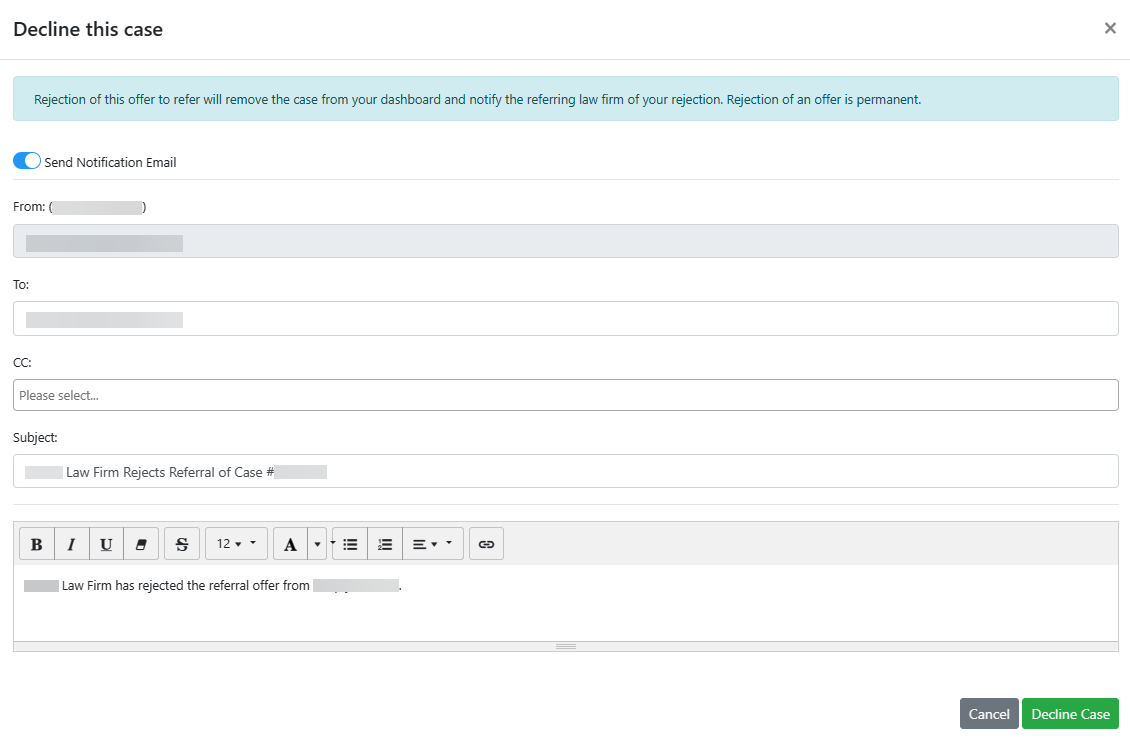
Figure 8. The Decline this case dialog box.
NOTE: If the referral firm’s user clicks Decline Referral Offer in the email notification, SimplyConvert opens but the user needs to find the case manually.
- Make sure the Send Notification Email switch is on, as shown in Figure 8.
- Click the To box and enter the email address of the person who should receive the notification, if it doesn’t already appear there. To send the message to multiple recipients, separate their email addresses with commas.
- To copy the email message to someone, click the CC address box and enter the email address. To copy the message to multiple recipients, separate their email addresses with commas.
- The Subject field should already be populated, as shown in Figure 8, but edit it as needed.
- Click the large text box and type the body of the message. Use the toolbar above the text box to format the message and insert hyperlinks.
- Click Decline Case.
The case is removed from the referral firm’s installation of SimplyConvert. In the referring firm’s installation, the case’s status is updated to Rejected on the Referrals tab (Figure 9). With the case having been rejected, you can refer the case to another firm or remove the referral entirely, as discussed in the following sections.

Figure 9. The referring firm’s installation of SimplyConvert shows that the case was rejected by the referral firm.
Making Changes to a Referral
After sending a referral, you can make certain changes to it or even delete it. This may be necessary if the referral firm turns down the referral or never replies to the referral notification.
Editing a Referral
To make a change to a referral after it has been sent:
- Open the case on the Cases page, open the Referrals tab, and click Edit Referral (Figure 10). The Edit Referral dialog box opens (Figure 11).

Figure 10. The Edit Referral button lets you make a change to an existing referral.
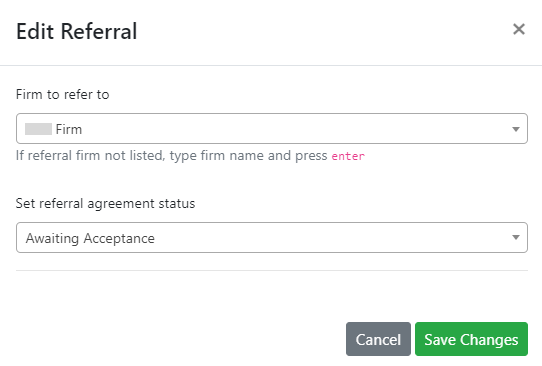
Figure 11. Editing a referral.
- To refer the case to a different firm, click the Firm to refer to drop-down arrow and select a firm. This reopens the Refer This Case dialog box so you can start the referral process over again, as described in Referring a Case to Another Firm, above.
- Make sure that Awaiting Acceptance is set as the status in the Set referral agreement status field.
- Click Save Changes. On the Referrals tab, the Status column updates to display the new status. The new referral firm can accept or decline the case as described previously if they use SimplyConvert.
Deleting a Referral
Take the following steps to remove a referral from a case:
- Open the case on the Cases page, go to the Referrals tab, and click Remove Referral. Depending on your browser, a message appears like the one shown in Figure 12.
- Click OK, and the Referrals tab returns to its original state, as if no referral has ever been made (Figure 13).

Figure 12. Removing a referral from a case.

Figure 13. The Referrals tab after removing a previous referral.
NOTE: The referral firm does not receive a notification when you remove a referral.
Identifying a Case Referred by Another Firm
If a firm refers a case to you without using SimplyConvert, you can identify it when you input the case in SimplyConvert, or any time after inputting the case. Here’s how:
- On the Cases page, open the case and click the Referrals tab.
- Click the This case was referred to me button. The Set Referral Source dialog box opens (Figure 14).
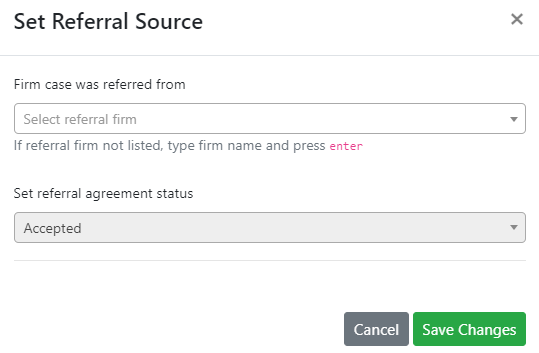
Figure 14. Identifying the firm that referred a case to you.
- Click the Firm case was referred from field’s drop-down arrow and select a firm from the list. If the firm does not appear in the list, type its name in the field and press Enter.
- Note that the referral’s status is set to Accepted by default. This cannot be changed.
- Click Save Changes. Managing Case Notes
Viewing Referred Cases
Take the following steps to view all the cases that your firm has referred to other firms:
- Point to the left-hand navigation pane to expand it (Figure 15).
- Click Referrals. The Cases page updates to display only referred cases.
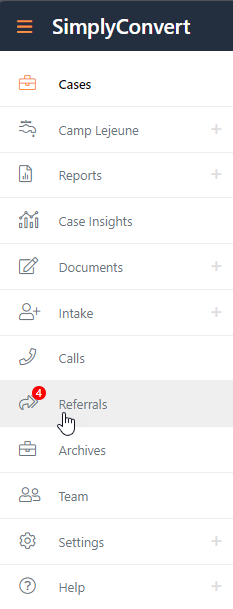
Figure 15. Updating the Cases page to show only referred cases.
Alternatively, you can open the Cases page, click the drop-down arrow next to Include Referrals, then click Show only referrals (Figure 16). You also can select and deselect any of the Referral Status checkboxes to see only referrals with a specific status. By default, all the statuses are selected, meaning all referral cases will appear on the page regardless of status.
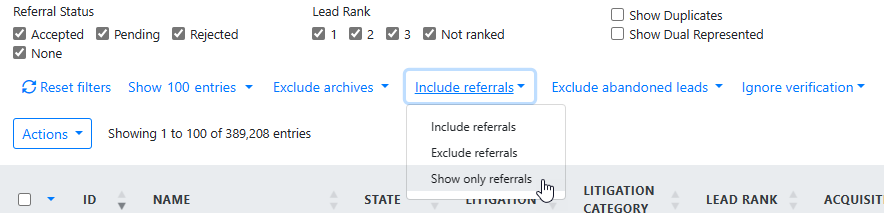
Figure 16. Setting the Cases page to show only referred cases.